A Sky Q box that reports it is connected to WiFi but has no internet is one of the more misleading error screens in a Sky home. The box sounds broken, yet in most cases it is working exactly as designed: it has reached your Sky Broadband Hub or third-party router perfectly well, and it is the hub's own broadband connection that has gone missing.
That distinction matters because it decides where you spend your effort. Restarting the Sky Q box over and over achieves nothing when the fault sits in the hub or on the line, and the message "It looks like you don't have an internet connection" often clears the moment the hub is restarted in the right order.
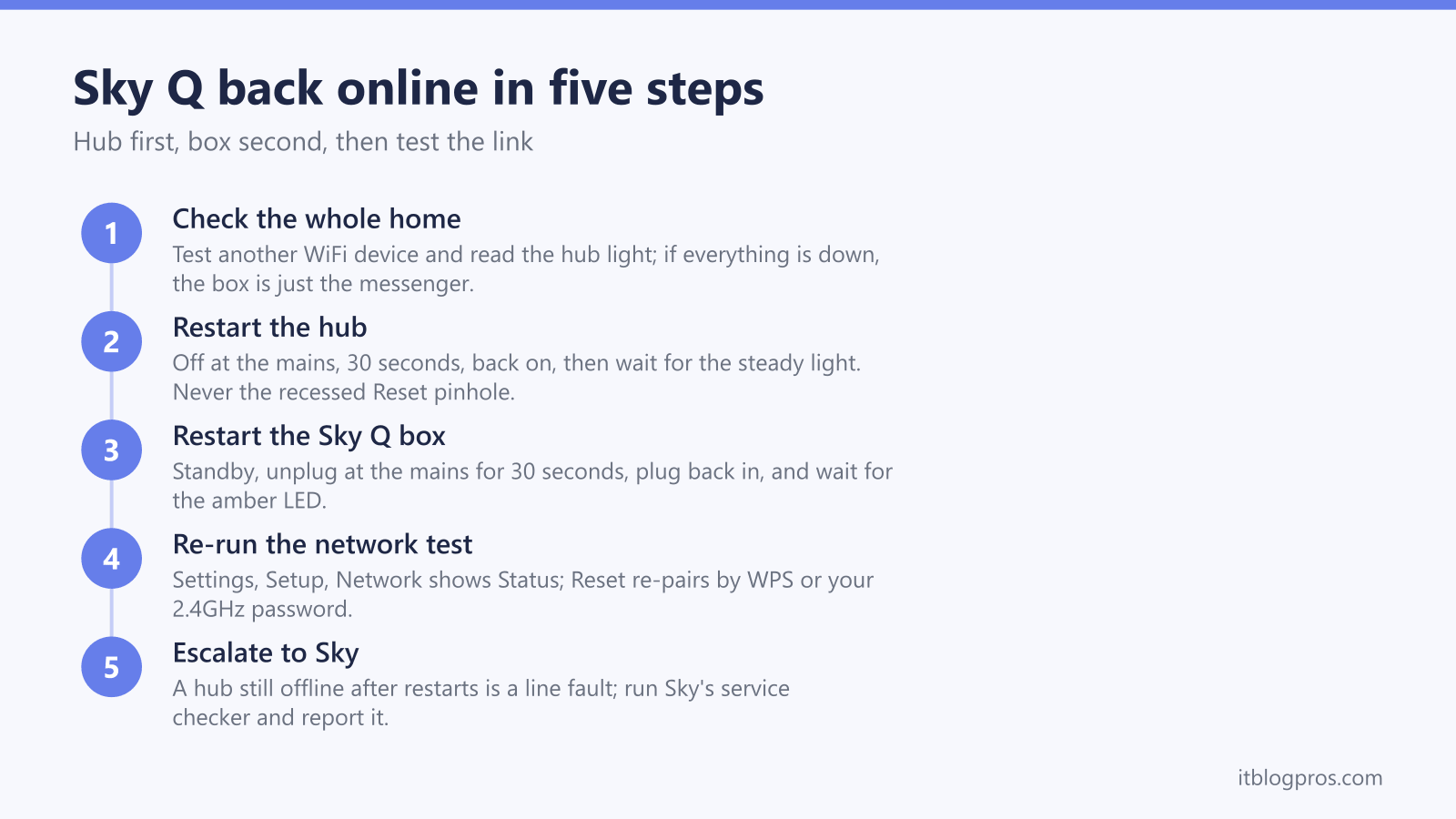
This guide explains how Sky Q boxes actually connect, what the connected-but-no-internet state really means, and the verified fix ladder Sky's own support process follows: whole-home check first, hub restart second, box restart third, then the built-in network test.
A Sky Q box showing connected but no internet has usually reached your hub successfully, but the hub itself has no working broadband, or the box is holding a stale link after a hub restart. Check whether other devices are online, restart the hub and wait for its steady light, then restart the Sky Q box at the mains for 30 seconds and re-run the network test under Settings, Setup, Network.
Key Takeaways
- A Sky Q box reporting connected but no internet has normally reached the hub fine, and it is the hub's broadband that is down or the box's link that has gone stale.
- The correct restart order is hub first, waiting for its steady light, then the Sky Q box: standby, off at the mains, 30 seconds unplugged, then back on.
- The network status screen under Settings, Setup, Network shows whether the box can see the router and the internet, and its Reset option re-pairs the connection by WPS or a 2.4GHz password.
- An Ethernet cable between the Sky Q box and the hub is the most stable link and removes the weak WiFi hop that causes repeat dropouts.
- A hub that still shows no internet after a restart points to a broadband or line fault, which Sky's service checker diagnoses before any call is needed.
How Sky Q boxes connect to your broadband
Sky Q does its networking differently from a phone or laptop, and that difference explains most confusing error screens.
The main Sky Q box connects to your router either over WiFi or by Ethernet cable. On Sky Broadband it pairs with the hub using WPS. On third-party broadband it joins your router's 2.4GHz band with the normal network name and password. Any Sky Q Mini boxes then connect to the main box, not to the router, over the Q boxes' own wireless mesh.
The boxes can also work in the other direction. On many Sky Broadband setups the Q boxes act as WiFi hotspots that rebroadcast your home network into the rooms they sit in, controlled under Settings, then Setup, then Network, then Advanced Settings, then WiFi hotspots. Sky documents this on its WiFi hotspots help page.
The practical consequence: the Sky Q box's connection state is its own. Your phone can be happily online over 5GHz while the Q box's separate link, or the hub's broadband behind it, is having a bad day. The box's error message describes its view of the network, not the whole house's.
What connected but no internet really means on Sky Q
The connected-but-no-internet state on Sky Q has two common causes, and neither is usually the box itself.
The first is that the box has a healthy link to the hub, but the hub has no working broadband. On the box's network status screen this shows as a tick next to the router and a cross next to the internet. The Q box is simply the messenger: it is reporting that the road beyond the hub is closed.
The second is a stale link. When the hub restarts, drops briefly, or changes WiFi channel, other devices quietly reconnect. Sky Q boxes sometimes hold on to the old session instead, and keep reporting no internet even after the hub has come back. That is why the fix ladder below restarts the hub first and the box second: the box needs to re-establish its link after the hub is stable, not before.
The same connected-versus-online distinction applies to every device in the house, and the general version of the problem is covered in why WiFi says connected but no internet.
Check the whole home before touching the box
One minute of checking saves half an hour of pointless rebooting, because it tells you whether this is a whole-home outage or a box-only fault.
First, test another device on the same WiFi with mobile data switched off. A phone or laptop that cannot load a page either means the broadband itself is down, and the Sky Q box is just the first screen that told you.
Second, look at the hub. A Sky Broadband Hub shows a steady white light when it is connected; flashing or amber states mean it is still connecting or has a problem. The full state table for every model is in the Sky Broadband Hub lights guide.
Third, check for a known outage. Sign in to Sky's service checker on mobile data or use the My Sky app: it reports problems affecting broadband in your area and can run a line check on your account. If Sky already knows about an outage, no amount of restarting at your end will fix it, and the sensible move is to wait it out.
Restart the hub first, then the Sky Q box
Order matters here. The Sky Q box can only rebuild its connection against a hub that is already up and settled.
Restart the hub by switching it off at the mains, waiting 30 seconds, and switching it back on. Leave it alone until the light settles steady, which can take several minutes. Do not press the recessed Reset pinhole on the back: that is a factory reset that wipes the hub's settings, not a restart.
Once the hub is steady, restart the Sky Q box properly. Pressing standby on the remote alone does not reboot it. The full restart Sky's support process uses is: press standby on the Sky Q remote, then switch the box off and unplug it at the mains, wait at least 30 seconds, then plug it back in and switch it on. Wait for the on-screen instructions to clear and the front LED to turn amber, give it another 30 seconds, then press Home on the remote. Some features, including apps and On Demand, can take up to five minutes to come back.
Repeat the same mains restart on any Mini boxes after the main box is back, since Minis take their connection from the main box, not from the hub.
Re-run the network test in the box's settings
Sky Q has its own connection test, and it is the quickest way to see whether the restarts worked.
Press Home on the Sky Q remote, then go to Settings, then Setup, then Network. The Status screen shows the box's view of the network: the name of the WiFi network it is joined to, plus tick or cross marks for the router and the internet.
A tick on both means the box is back online and the job is done. A tick next to the router with a cross next to the internet means the box still cannot see broadband through the hub, which points back at the hub or the line rather than the box.
If the box will not reconnect at all, highlight Status and select Reset on the right-hand side, then follow the on-screen instructions. On Sky Broadband you will be asked to press the WPS button on the hub, and it is worth double-checking you press WPS and not the recessed Reset hole. On third-party broadband there is no WPS pairing: you enter the network name and password for your router's 2.4GHz band instead, since the main box pairs on 2.4GHz with non-Sky routers.
Cable the box to the hub where the WiFi link is weak
Every Sky Q box has an Ethernet port, and a cable between the main box and the hub is the most reliable connection the box can have. Sky's own reconnection process supports it directly: run the same Network reset from Settings, Setup, Network with the Ethernet cable already plugged in, and the box adopts the wired link.
Wired is worth doing whenever the box and hub sit close together, and worth engineering with a longer flat cable when the WiFi between them is the recurring weak point. It removes the single most failure-prone hop in the chain, and it gives the Q mesh a solid anchor, because Mini boxes connect through the main box and inherit whatever quality of link it has.
There are honest limits. A cable does nothing when the actual fault is the hub's broadband, and trailing Ethernet across a house is not always practical. Mini boxes can also be wired in the same way, but a Mini cabled to a distant hub still needs the main box reachable over the mesh for some functions, so the main box is the one to wire first.
Fix a weak wireless link between the box and the hub
When the box drops its connection repeatedly rather than once, the usual culprit is the wireless link between the Q box and the hub: too much distance, too many walls, or interference from other equipment near the TV.
The free fixes come first. Move the hub into open air rather than a cabinet, keep the Q box off the floor and away from other electronics, and shorten the straight-line path between them where possible. The broader room-by-room approach is covered in fixing your Sky Broadband WiFi signal.
On the hardware side, Sky's current answer for weak coverage is its WiFi Max add-on: the Sky Max Hub plus up to three loaned Max Pods. The pods are not sent automatically; Sky allocates them after a phone diagnosis, and its working threshold reported through Sky's own community team is a room with no usable signal or speeds below 25Mbps. The older standalone Sky Q Booster is no longer the current offer.
The Q boxes themselves can help, since Minis act as hotspots extending the home network, but only when their own link is solid. A Mini with barely enough signal to stream cannot boost anything else, so fix the box-to-hub link before relying on the boxes to carry WiFi onwards.
The point where Sky needs to take over
Everything above fixes the box's link to the hub. When the hub itself has no broadband, the problem has left your house and Sky needs to deal with it.
Contact Sky when the hub still shows no internet after a mains restart, when the service checker or My Sky app reports a fault on the line, or when broadband drops repeatedly across every device in the home, not just the Sky Q box. Those are line-side symptoms, and they can need an engineer rather than anything you can do with a remote control.
The box itself earns the call only in a narrow case: the hub is steady, every other device is online, and the Q box still refuses to connect after a full mains restart, a network reset, and ideally a test on Ethernet. At that point the fault genuinely sits in the box's networking, and because Sky Q hardware is supplied by Sky, the fix is Sky refreshing or replacing the box rather than anything bought off the shelf.
Run the service checker before calling either way. If Sky already knows about the fault, the report is logged, and the checker's line test is the same first step an agent would walk through on the phone.