A device showing full WiFi bars that still refuses to load a page is saying something quite precise. The radio link to the router worked; something further along the chain did not. That one distinction rules out passwords, signal strength and most of the advice on the internet before a single setting gets touched, and it turns a vague fault into a short list of places to look.
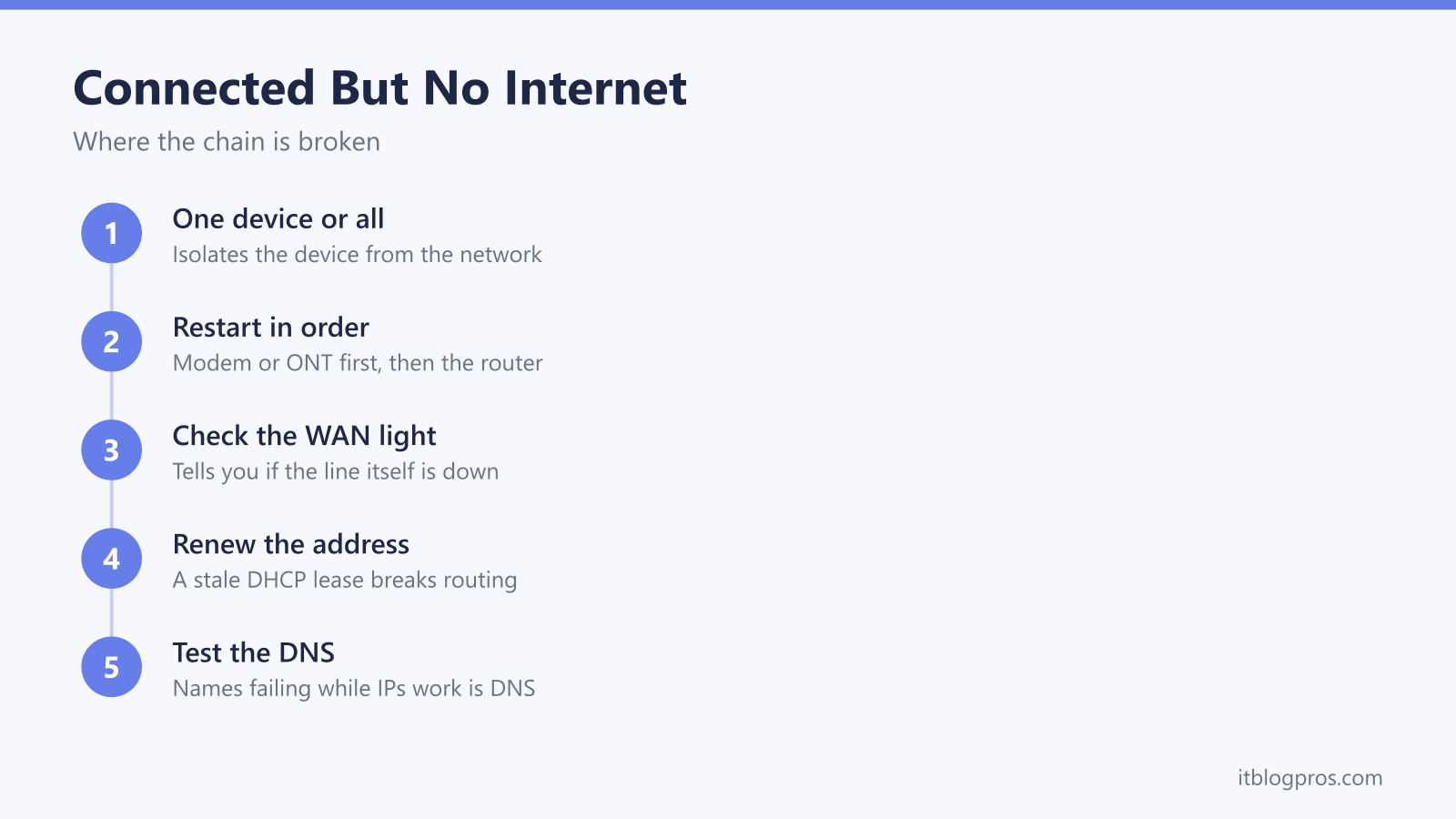
A WiFi network that connects but shows no internet has a break somewhere past the first link in a chain that runs device, router, line, ISP and DNS. Work out whether one device or all of them are affected, restart the modem or ONT before the router, read the WAN light to see whether the line itself is down, then renew the address and test DNS on the device that is complaining.
Key Takeaways
- Connected but no internet means the wireless link succeeded and something further along the chain of router, line, provider or DNS did not.
- One device offline while the rest of the house works points at that device; every device offline at once points at the router, the line or the provider.
- A wired device that is also offline takes WiFi out of the picture entirely and proves the fault sits upstream of the router's wireless.
- Restarting the modem or ONT first, waiting for it to sync and only then restarting the router avoids a router that boots into a dead line.
- Names failing while a raw IP address still answers is the signature of a DNS fault, which a different resolver usually clears.
WiFi connecting is only the first link in the chain
Joining a WiFi network proves three small things: the password was right, the router's radio accepted the device, and the router handed out a local address. None of that involves the internet. Behind the scenes the chain runs device, router, broadband line, provider network, then DNS, and every link has to hold before a web page appears.
Modern operating systems quietly test that chain a few seconds after joining, each fetching a small file from a server run by its maker. When the answer does not come back as expected, the network gets labelled: Windows says "No internet, secured", Android says "Connected, no internet", and Apple devices put a warning beside the network name. Different wording, same test, same meaning.
That is why the fix so rarely involves the WiFi password, moving the hub or buying an extender, which all address a weak signal instead. A connection that works, drops, then returns on its own is a different fault again, covered in WiFi that keeps dropping.
The isolation grid narrows the fault in about two minutes
Before changing anything, get the shape of the fault along two axes: how many devices are affected, and whether anything wired is affected too. A couple of minutes here saves an hour of guessing.
| What is offline | Where the fault sits | First move |
|---|---|---|
| One device, everything else fine | That device's network settings | Renew its address, check for a VPN, a proxy or a wrong clock |
| Every wireless device, a wired one works | The router's wireless or DHCP side | Restart the router, then check its wireless settings |
| Everything, wired included | The line, the provider or the router's WAN side | Read the WAN light, check for an outage, restart in order |
| One device on every network, mobile hotspot included | That device, more deeply | Reset its network settings and check the clock |
A laptop and one Ethernet cable borrowed from a set-top box is enough for the wired test. Mobile data makes a useful second control: if a page loads over 4G on the same phone that fails on WiFi, the phone and the wider internet are both healthy, which leaves the home network holding the blame.
Restarting the modem or ONT first and the router second
Order matters more than most guides admit. A router asks the provider's network for an address the moment its WAN side comes up, so a router that boots while the modem or ONT is still syncing gets no answer, and some units will sit in that failed state until they are restarted again.
The sequence that avoids it is straightforward. Power both boxes off at the socket and leave them off for at least 30 seconds, long enough for the hardware to discharge and for the session at the provider's end to clear. Bring up the modem or ONT alone and wait until its lights settle into their normal steady state, which can take a minute or so on cable and several minutes on full fibre. Only then power on the router, and give it another two to five minutes to authenticate and pull an address before judging the result.
Most UK households have a single all-in-one hub, so there is nothing to sequence and one power cycle does the lot. Resist the pinhole factory reset at this stage: it wipes the WiFi name, password and every customisation, and it does nothing whatsoever for a line that is down. Button locations, hold times and light behaviour differ by hub, and the per-provider detail is laid out in how to reset your router for every UK ISP.
The WAN or internet light shows whether the line itself is down
Once the kit is back up, the front panel is the fastest read on whether the fault is inside the house at all. Most routers carry a light labelled internet or WAN, or a globe symbol, kept separate from the wireless light, and it reports the state of the connection to the provider rather than the state of the WiFi. A wireless light happily on while the internet light sits off, red or orange is about as clear a signal as home networking gives: the WiFi is doing its job and the line is not.
Colours and blink patterns vary considerably between models, so the label on the base of the hub or the provider's support page is the authority on what a given colour means; there is no universal code, and guessing at one gets the wrong fault reported. What does hold across models is the pattern: a light that never reaches its normal steady colour means the router has not established a session with the provider.
On full fibre the more informative box is the ONT on the wall, since it sits between the fibre and the router and reports whether optical signal is arriving at all. A loss-of-signal light there points straight at the fibre rather than at anything inside the house, and each state is decoded in Openreach ONT lights meaning. The router's admin page adds one more data point, because the hub stays reachable on the local network even with no internet; a blank or 0.0.0.0 WAN address on its status screen confirms the same story the light was telling.
Device-side causes when only one machine is offline
A stale DHCP lease is the most common single-device cause. The device is holding an address the router no longer recognises, so traffic goes nowhere. On Windows, an address beginning 169.254 in the output of ipconfig /all is the giveaway, because that range is what a device assigns itself when no DHCP reply arrives at all. Releasing and renewing clears it: ipconfig /release followed by ipconfig /renew in a command prompt. macOS has a Renew DHCP Lease button in the TCP/IP section of the network settings. On a phone or tablet, forgetting the network and rejoining does the same job.
A static IP left set from an old network, or from a fix somebody applied and forgot, produces the identical symptom permanently. Open the IPv4 properties for the adapter and, unless there is a genuine reason for a fixed address, set both the IP address and the DNS server to obtain automatically.
A VPN or proxy still running blocks traffic while the WiFi carries on looking perfectly connected. A tunnel that has died leaves the device with no route out, and a kill switch is built to block everything in exactly that situation, so disconnect the VPN properly rather than closing its window. On Windows, a proxy entry left behind by old software has the same effect; the proxy settings page should show no manual proxy unless a workplace requires one.
A wrong date or time quietly breaks HTTPS. Certificates are only valid between two dates, so a clock that is badly out makes site after site fail with a security warning, which reads as no internet even though the connection underneath is fine. Setting the date and time to update automatically resolves it.
"No internet, secured" on Windows is two statements joined together: the wireless encryption is fine, and the connectivity check failed. Windows laptops add one suspect of their own, the adapter power-management setting that lets the computer switch the wireless card off to save power. As a genuine last resort, an elevated command prompt running netsh winsock reset and netsh int ip reset, followed by a restart, rebuilds the network stack; it also clears custom network configuration, so it belongs at the end of the list rather than the start.
DNS is the culprit when names fail and raw addresses work
One test separates DNS from everything else and takes about ten seconds. Ping a raw address such as 1.1.1.1, then ping a site name. Replies to the number with failure on the name means the connection is up and only name lookup is broken, which is DNS, and it explains the oddly common case where a messaging app keeps working while the browser shows nothing but errors. On networks that block ping, running nslookup against a site name gives the same verdict.
Flushing the cache clears the mild cases: ipconfig /flushdns on Windows, and an equivalent flush command on macOS that asks for an administrator password. If names still fail, point the device at a public resolver instead; Cloudflare's 1.1.1.1 and Google's 8.8.8.8 are the two usually reached for, and making the change on the router rather than the device covers the whole house at once.
Two honest caveats belong with that advice. Changing DNS does not make a broadband line faster, because it changes where names get looked up rather than how much data the line carries. And network-level parental filters from UK providers generally operate through the provider's own DNS, so switching resolvers can quietly switch those filters off; households relying on them should apply filtering at the router or on the device first. Android carries a related trap: a mistyped hostname in Private DNS makes every network the phone joins fail this way, on WiFi and mobile data alike.
Captive portals leave the connection waiting at a sign-in page
Away from home, connected with no internet has an obvious extra suspect: the network is holding all traffic until a sign-in page has been loaded and accepted. Hotels, airports, trains, cafes, campsites and plenty of guest networks work this way, and until the terms are accepted the network passes nothing, so the device reports the same status it would for a dead line.
The sign-in page often fails to appear because portals work by redirecting unencrypted requests, and modern devices send very few of those. Opening a deliberately plain HTTP page gives the portal something to catch, and a VPN, private relay or private DNS setting will block the detection too, so those need pausing before rejoining. The full set of methods for forcing a portal to appear is in what WiFi sign in required actually means.
Home routers do not run captive portals, so the same prompt on a home network is not a real portal at all. It is the connectivity check failing, which sends the diagnosis back up this page to the WAN light and the restart order.
Outage checks and reporting when the fault belongs to the provider
Sometimes the honest answer is that nothing in the house is broken. A wired device offline as well, an internet light that never reaches its normal colour, and a correctly ordered restart that changed nothing all point upstream, and further fiddling will not shift it.
Check for an outage before calling. Large UK providers publish a service status page, and most have an app that reports the state of the line for a specific address; both stay reachable over mobile data while the broadband is down. Third-party outage trackers are a reasonable sanity check on whether neighbours are seeing the same thing, with the caveat that they reflect user reports rather than the provider's own records.
A few specifics then move the call along faster than a description of the symptom: whether a wired device is also offline, the exact state and colour of the WAN light and, on full fibre, the ONT lights, when it started, and what has already been restarted. That is usually enough for an agent to skip the standard script about rebooting the hub and move to line diagnostics.
Compensation is worth knowing about for a long outage. Most of the larger UK providers have signed up to Ofcom's automatic compensation scheme, which pays a set daily amount when a total loss of service is not repaired after two full working days, without the customer having to ask for it. Whether a particular provider is a signatory, and the current daily rates, are published by Ofcom and worth checking rather than assuming.