Xfinity trouble shows up in a dozen different shapes: a speed test reading a fraction of the plan, a front light that never settles, WiFi that works in the living room and dies in the back bedroom, or no connection at all. Random tips fix these by luck. A fix order fixes them by elimination, ruling out the causes you cannot control before spending time on the ones you can.
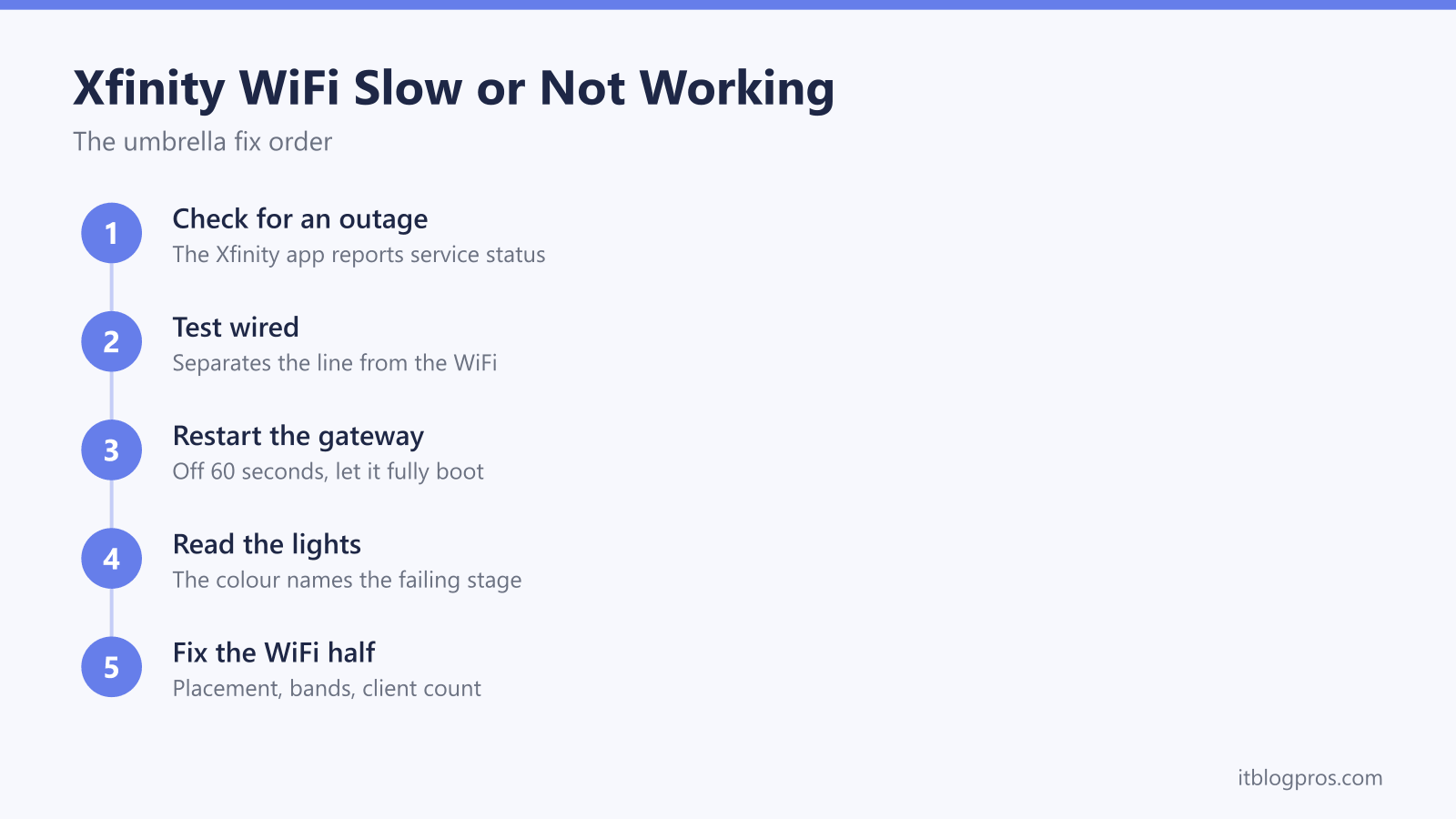
Work Xfinity problems in a fixed order. Check for an area outage in the Xfinity app first, then plug a laptop into the gateway with Ethernet to separate the line from the wireless. Restart the gateway properly, read the front light, and only then chase WiFi placement, bands and client count. Escalate to Comcast when the line itself keeps failing.
Key Takeaways
- Outage checks come first, because no amount of restarting fixes a fault on Comcast's side of the wall.
- A laptop wired into the gateway is the most useful two minutes of the whole process, since it separates a line problem from a WiFi problem.
- A real power cycle means roughly 60 seconds unplugged, which forces the gateway to re-register instead of limping along on stale state.
- The front light narrows the fault quickly, and each color pattern has its own fix ladder on this site.
- Slow WiFi alongside healthy wired speeds is a placement, band or client count problem rather than a plan problem.
An outage check comes before any cable gets touched
Nothing on this page helps if the fault sits upstream. Comcast reports account-level service issues in the Xfinity app, which is the fastest place to look and can send a text message when service returns. The same status information appears on Xfinity's support site for signed-in accounts, so it pays to have the login stored somewhere reachable without home internet.
Check from a phone with WiFi switched off so it uses cellular data. A phone still attached to a dead network will sit there spinning rather than loading the app. Third-party outage trackers are worth a glance for a sense of whether neighbors are reporting the same thing at the same time, though they are crowd-sourced and carry no authority; treat them as a hint, not a verdict.
One non-technical cause belongs in this step too. An unpaid or suspended account produces a connection that looks alive but serves nothing useful, and the app will normally say so on the account screen. Ruling that in or out takes seconds and saves an hour of pointless rebooting.
The wired test separates the line from the wireless
This is the single most valuable diagnostic on the page, and it takes about two minutes. Run an Ethernet cable from a laptop to one of the ports on the back of the gateway, switch the laptop's WiFi off completely, and run a speed test. Xfinity hosts its own speed test, and running one independent test as well is worth doing because results vary by server and time of day.
A few caveats keep the result honest. A standard gigabit Ethernet port tops out around 940 Mbps of real throughput, so a gigabit plan will never show a clean 1,000. Older laptops and cheap USB adapters often have 100 Mbps ports, which cap the result near 94 Mbps no matter what the plan says. Plans above 1 Gbps need a 2.5G port at both ends and a suitable cable, and without that the test result is measuring the port rather than the line.
The interpretation is simple. Wired speeds close to the plan mean the internet arriving at the house is fine and every remaining symptom belongs to the wireless half. Wired speeds far below plan, or a wired connection that drops out on its own, mean the line, the gateway or the coax path is at fault, and no amount of WiFi tuning will change that.
Restarting the gateway properly, and why 60 seconds matters
There are two ways to restart, and they are not equivalent. The Xfinity app offers a restart command in the device or troubleshooting section, which reboots the gateway remotely and is enough for a mild glitch. Pulling the power cord is the stronger version. Unplug the gateway at the wall, wait a full 60 seconds, then plug it back in and leave it alone for up to 15 minutes while it boots and reacquires its signal.
The wait is not superstition. Sixty seconds lets the internal power drain and the working memory clear, which discards the stuck connection state, the stale address lease and any wireless channel selection that has gone bad. On restart the gateway re-registers with Comcast from scratch and picks its channels again by looking at what is actually on the air. A five second unplug frequently boots the device straight back into the same fault.
Two practical notes. Gateways supplied alongside Xfinity Voice may contain a backup battery, so if the lights stay on after unplugging, look for a battery compartment and remove that too. And a restart is not a factory reset; the reset button wipes the custom network name, password and any settings, and it is a last resort rather than a first move. Restarting the affected phone, laptop or TV at the same time costs nothing and clears client-side network state that can outlive the gateway's problem.
The front light is a triage tool rather than decoration
Once the gateway is back up, the light on the front says what stage it reached. Behavior varies between gateway generations, so treat this as the common case on current xFi hardware and check the model's own documentation when the pattern does not match.
A steady white light means the gateway is up and online, and any remaining problem lives in the WiFi or on a specific device. A blinking white light means booting or activation in progress, which is normal for several minutes after a restart and longer on brand new hardware, and it is covered in detail in the guide to an Xfinity router blinking white with no internet. A blinking green light means the gateway is trying to acquire and lock its signal, normal for a minute or two and a problem only when it never settles, which the blinking green light guide works through step by step. A blinking orange light means either a firmware update running or a gateway that cannot lock a signal, and telling those two apart is the whole point of the blinking orange light guide; the practical rule is to wait it out for around 15 minutes before intervening, because interrupting an update can damage the device.
If a light pattern points at a signal problem, the coax path is the cheapest thing to check. Hand-tighten the coaxial connector at the gateway and at the wall plate, look for kinks or crushed sections in the cable, and remove any splitter that is not genuinely needed, since every split weakens the signal reaching the gateway.
The WiFi half comes down to placement, bands and client count
When the wired test came back healthy, everything left is wireless, and four things account for most of it.
Placement does more than any setting. Gateways belong out in the open, standing upright, raised off the floor and roughly central to the space they serve. Inside a TV cabinet, behind a monitor, in a closet or in a corner of the basement, the signal is being absorbed before it starts. Metal, mirrors, tiled walls, water tanks and fish tanks are the strongest blockers in a typical house, and microwaves and cordless phone bases actively interfere with the 2.4 GHz band.
Band choice matters next. The 2.4 GHz band travels further and through more walls but carries less data and is crowded with neighboring networks and smart home gear. The 5 GHz band is much faster over shorter distances. Gateways combine both under one network name and steer devices automatically, which usually works and occasionally leaves a phone clinging to the slow band in a room where it does not need to. The Xfinity app can give the bands separate names so devices can be pointed deliberately, which also solves smart plugs and cameras that refuse to pair while the phone sits on 5 GHz. Households running xFi Pods are the exception, since Pods require the combined network.
Client count is the quiet one. Every active phone, TV, console, camera, speaker and plug takes a share of the gateway's airtime, and an all-in-one gateway starts behaving erratically well before anyone expects it to. Wiring the stationary devices is the highest-value fix available, because a 4K TV streaming over Ethernet hands its entire share of the airtime back to everything else.
Dead zones are the last piece. Walk the house with a speed test running and note where the numbers collapse, because that turns a vague complaint into a map. A single weak room often improves just by moving the gateway. A house with several weak rooms needs either mesh nodes or a wired connection run to a second access point, and a wired link to that second point always beats a repeater relaying over the air.
Routing to the right specialist page by symptom
Broad symptoms narrow into specific ones, and each of these has a dedicated guide.
- Connection drops repeatedly and comes back on its own, most often in the evening: work through why Xfinity WiFi keeps dropping.
- Faults that track a specific gateway model: the XB7 issues guide covers heat, band steering and light states on that generation.
- New devices refusing to join while existing ones stay online: read the guide to the Xfinity WiFi device limit, which explains where the real ceiling sits.
- A device that enters the correct password and is still refused: check whether an allow list is silently rejecting it, using the Xfinity MAC filtering guide.
- Wanting your own router or mesh to run the network instead of the gateway: the Xfinity bridge mode guide covers the 10.0.0.1 admin login and the exact menu path.
- Being done with the rental fee entirely: the guide to buying your own modem instead of renting walks through the payback math and the approved-hardware requirement.
Escalating to Comcast at the right moment
Support calls go better when the line is already implicated. Escalate when wired speeds sit far below the plan with no reported outage, when the gateway keeps losing its lock, when drops recur at the same time each day, when the front light never reaches a steady state, or when the coax drop outside shows visible damage.
Ask for specific things rather than describing the symptom and hoping. A signal level check on the line tells the technician whether the levels reaching the gateway are within spec. A check of the drop and its connectors covers the run from the street into the house. On a rented gateway, ask for the firmware version to be confirmed, because renters cannot update firmware themselves and a bad build is a genuine cause that no amount of home troubleshooting will touch.
Bring evidence. Dates and times of the drops, the wired speed test results, and the light pattern at the moment of failure move a call along faster than anything else. If the outcome is a technician visit, ask up front whether a charge can apply, since that depends on the account and on where the fault turns out to be, and getting the answer before the appointment avoids an unpleasant surprise on the next bill.