Searches about the Xfinity WiFi device limit usually start the same way: a new phone, console or smart plug refuses to join the network, and the obvious conclusion is that Comcast has capped the account. The reality is less dramatic and far more fixable. This guide explains where the real limits sit, the symptoms of a gateway running out of headroom, and the fix ladder that gets every device online.
Xfinity does not publish a hard device cap for home WiFi. The real limit is the gateway hardware, which typically handles a few dozen active clients before new devices refuse to join and existing ones start dropping. Audit the device list in the Xfinity app, remove ghost devices, wire what can be wired, and if the house still outgrows the gateway, put it in bridge mode behind your own router or mesh.
Key Takeaways
- Xfinity does not publish a hard device cap for home WiFi, and plans are billed by speed and data rather than by device count.
- The practical limit comes from the gateway hardware, which strains once a few dozen clients are active at the same time.
- New devices refusing to join and random disconnects across the house are the classic signs of a gateway at its practical client limit.
- The Xfinity app's device list shows every connected client, so pruning ghost devices and checking for paused or blocked entries fixes many cases outright.
- Bridge mode with your own router or mesh raises the practical client count substantially when the gateway itself is the ceiling.
Xfinity does not publish a hard device cap for home WiFi
Comcast sells home internet by plan speed and, on some plans, by data used. Nowhere in the plan terms is a number of allowed devices, and the Xfinity app will not stop a fifteenth or fiftieth device from trying to join. Any article quoting an exact account-wide device cap for Xfinity home WiFi is describing something Comcast does not publish.
The limits that do exist are practical, and they live in the gateway hardware. Every all-in-one gateway, xFi models included, has finite processing power, memory and wireless airtime. Manufacturer claims about supporting large device counts describe devices merely associated with the network, not dozens of clients streaming, updating and syncing at once. In real homes, an all-in-one gateway typically stays comfortable with a few dozen active clients, and behavior gets erratic beyond that. Newer gateways handle more than older ones, but the ceiling is always hardware, not policy.
Two Xfinity products do carry their own published limits, and mixing them up with home WiFi causes most of the confusion. Xfinity WiFi public hotspots limit how many devices can be registered to an account for hotspot access, and Xfinity Mobile plans limit lines and hotspot data in their own terms. Both figures are set per product and listed on Xfinity's support site, and neither has anything to do with how many devices can join the WiFi inside the house.
New devices refusing to join is the classic full-gateway symptom
A gateway at its practical limit produces a recognizable pattern. A brand-new device finds the network and accepts the password, then hangs while obtaining an IP address, or joins for a minute and silently drops. Devices already on the network start disconnecting at random, usually in the evening when phones, TVs, consoles and laptops are all active at once. Smart home devices go unresponsive in batches rather than one at a time, and in the worst cases the gateway reboots itself under load.
The mechanism is straightforward. Every active client costs the gateway airtime for its transmissions and memory for its connection state. As the count climbs, the radio spends more time coordinating and retransmitting, the processor spends more time juggling connections, and the slowest, most distant clients drag the shared airtime down for everyone. The symptoms overlap with plain range and interference problems, which is why the diagnosis starts with counting clients rather than guessing.
Audit the device list in the Xfinity app first
The Xfinity app, which absorbed the older xFi app, shows every client the gateway knows about. Open the app, go to the WiFi tab, and open the connected devices list. The list covers devices currently online and devices seen recently, and each entry can be renamed, which is worth doing once so future audits take seconds.
Count what is there and identify every entry. Most households are surprised by the total: phones, tablets, laptops, TVs, streaming sticks, consoles, printers, doorbells, cameras, thermostats, speakers, plugs and bulbs add up quickly. One quirk to expect is that modern phones and laptops use private or randomized WiFi addresses by default, so a single physical device can appear as two or three unknown entries. Renaming the entries you can identify makes the genuinely unknown ones stand out.
Prune ghost and forgotten devices
The device list almost always contains clients that no longer deserve a slot. Old phones that were traded in, a guest's tablet from months ago, a smart plug that went in a drawer, and duplicate entries left behind by address randomization all linger in the list. Remove or forget every entry that is not a device currently in use. A leaner list makes real problems visible and stops retired hardware from quietly reconnecting.
When the list is too messy to untangle, changing the WiFi password is the clean-slate option. Every device drops off immediately, and only the devices that get the new password rejoin. It costs an evening of re-entering the password on things that matter, and in exchange the network contains exactly the clients the household chose to put back on it.
Paused and blocked devices look exactly like a device limit
Before blaming capacity, check whether the "limit" is actually a control feature doing its job. The Xfinity app can pause individual devices or whole profiles, and parental control schedules pause devices automatically at set times. A paused device stays associated with the network but gets no internet, which from the couch looks identical to a full network. The device's entry in the app shows its paused state and offers an unpause button.
The app also keeps a blocked device list, and a block is permanent until removed. Stricter still, an allow list built with Xfinity MAC filtering rejects every device not explicitly added, so a new phone can be entering the correct password and still be refused. In shared households it is common for one person to have set up pausing, blocking or filtering that another person later reads as a mysterious device cap, so this check is worth thirty seconds even when it seems unlikely.
Wire what can be wired to free WiFi capacity
Every stationary device moved to Ethernet is a WiFi client removed from the airtime contest, and the wired device itself gets a faster, more stable connection in the bargain. TVs, streaming boxes, game consoles, desktop computers and printers that sit near the gateway are the natural candidates, and xFi gateways provide Ethernet ports on the back for exactly this. A TV that streams 4K video over a cable instead of WiFi returns more usable airtime to the network than removing several idle smart plugs.
For rooms without a practical cable run, powerline and MoCA adapters carry a wired connection over existing electrical or coax wiring, which extends the same benefit to a distant TV or console without drilling holes. Wiring even three or four heavy devices changes the character of a crowded network noticeably.
Give smart home devices a deliberate plan
Smart plugs, bulbs and cameras that only connect on 2.4 GHz share the band Xfinity's band steering article describes as having the best range but being slower and more crowded. Wyze's band support article, for example, lists its plugs and bulbs as 2.4 GHz devices and names only a short list of its cameras, doorbells and mesh routers as supporting 5 GHz, and each device's spec sheet or setup guide states the band it uses. Twenty 2.4 GHz devices on one gateway crowd the band that distant devices also depend on. Each one uses little bandwidth, but every one of them still occupies a client slot and a share of coordination airtime.
Two moves help. First, high-bandwidth devices such as laptops, phones and TVs perform best on the faster bands, and Xfinity's band steering article says the gateway picks the best band for each device automatically when all bands share one WiFi name and password, while describing 5 GHz as faster but shorter range, so placing them within good range of the gateway gives them the best chance of the faster band. Second, hub-based smart home ecosystems using Zigbee, Z-Wave or Thread put dozens of sensors and bulbs behind a single hub, so the gateway sees one client instead of thirty. For a household deep into smart home gear, a hub is the single biggest reduction in WiFi client count available.
Bridge mode and your own router raise the practical ceiling
When the audit is done, the ghosts are gone, the stationary devices are wired and the count is still high, the gateway itself is the ceiling, and the fix is to stop asking it to run the network. Enabling bridge mode turns the Xfinity gateway into a modem only and hands routing, WiFi and client handling to your own hardware. A quality standalone router manages far more simultaneous clients gracefully than an all-in-one gateway, and a mesh system goes further by spreading clients across multiple nodes so no single radio carries the whole house. The Xfinity bridge mode guide covers the 10.0.0.1 admin login and the exact menu path to flip the switch.
Comcast places no restriction on how many devices sit behind your own router; the gateway simply passes traffic for the one connection. For households ready to go a step further, replacing the rented gateway with an approved modem removes the monthly equipment fee as well, and the guide to buying your own modem instead of renting walks through the savings math and the approved-hardware requirement.
The fix ladder from quick win to full upgrade
The order of operations matters, because the cheap fixes solve most cases before the hardware ones are needed.
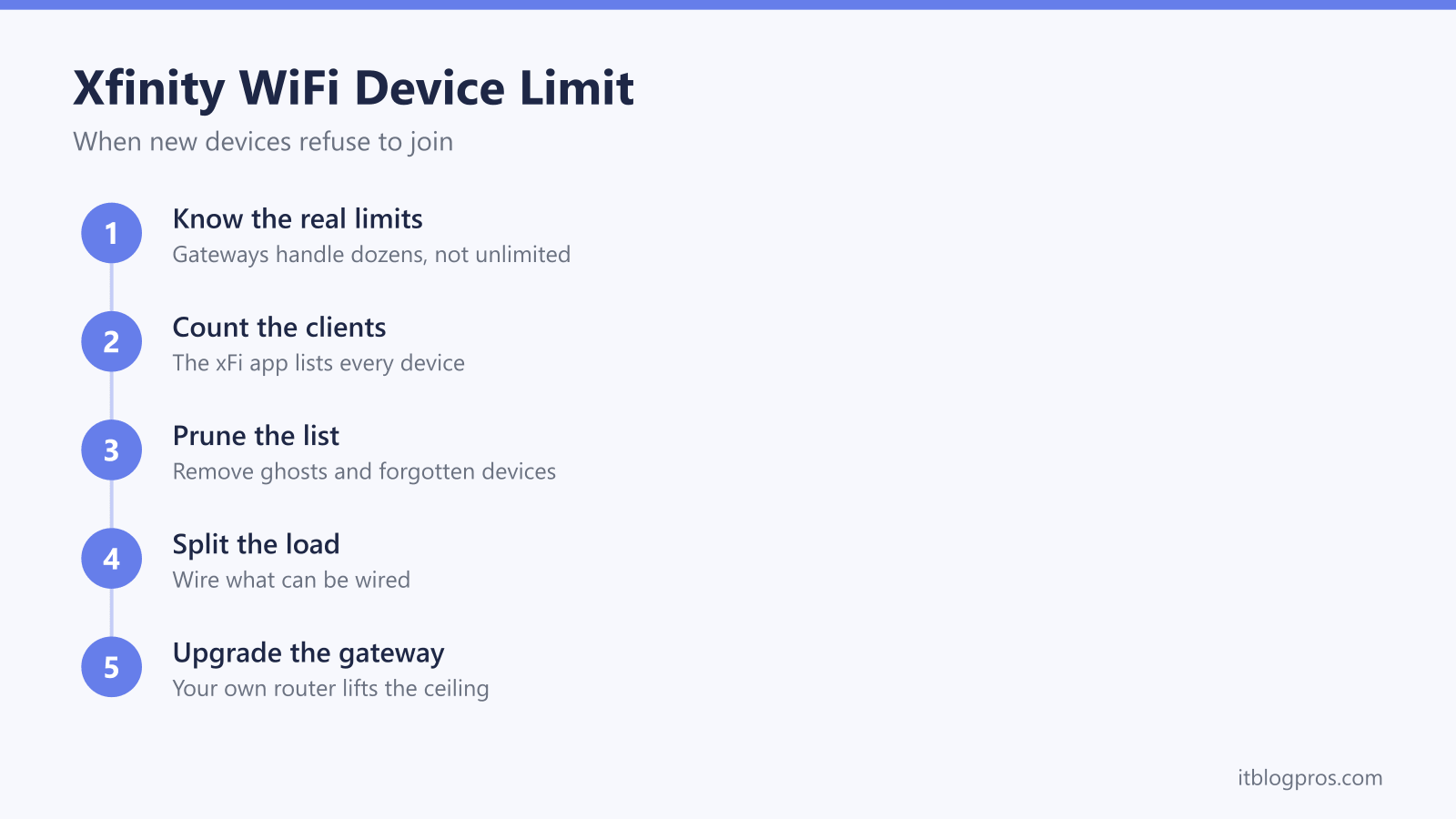
- Open the Xfinity app and count the devices on the network, renaming entries so every one is identifiable.
- Remove ghost and forgotten devices, or change the WiFi password for a clean slate.
- Check the struggling device for a paused, blocked or filtered state before assuming capacity.
- Wire stationary devices such as TVs, consoles and desktops by Ethernet.
- Move a large smart home setup behind a Zigbee, Z-Wave or Thread hub.
- Put the gateway in bridge mode behind your own router or mesh when the household genuinely outgrows it.
Worked top to bottom, the ladder turns a vague device limit into a specific, solvable capacity problem, and most homes never need the final rung.