A website that refuses to load on your WiFi, or one device shut out while everything else in the house works fine, is usually a block rather than a fault. The catch is that the block can live in four different places, and fiddling with the wrong one wastes an evening. This guide pins down the layer first, because once you know where the block lives, the fix itself takes minutes.
A WiFi block always lives in one of four layers: the device itself, the router, the DNS service resolving names, or the ISP's network filter. Work out which layer by testing one site against all sites and one device against all devices, then fix it at that layer: device settings, the router admin pages, a different DNS resolver, or the filter switch in your ISP account.
Key Takeaways
- Every WiFi block lives in one of four layers, the device, the router, the DNS service or the ISP's filter, and naming the layer is most of the diagnosis.
- One site blocked on every device points past the device to the router, DNS or ISP, while every site blocked on one device points at the router's access controls.
- Router-level blocks such as parental controls, access schedules and MAC filtering are switched off in the router's admin pages.
- UK ISP content filters like Web Safe and BT Parental Controls apply to the whole account, and the off switch lives in your ISP account portal, not the router.
- A VPN encrypts traffic past network-level filtering on a connection you own, but on a school or work network the block is policy to respect rather than a fault to fix.
Every block lives in one of four layers
A block is not one thing. It gets applied at one of four points between your screen and the wider internet, and each point has its own off switch.
The device can block. Parental control tools such as Screen Time on Apple devices and Family Link on Android, security suites, browser extensions and firewall rules all stop specific sites or apps on that one machine and touch nothing else in the house.
The router can block. Parental controls, access schedules, MAC filtering (a list of allowed or banned devices) and guest-network isolation all live in the router's own settings and affect anything connected to it.
The DNS service can block. DNS is the phone book that turns a name like example.com into a numeric address, and a filtering resolver simply refuses to answer for sites in banned categories. Filtered DNS can be set on one device or on the router for the whole network.
The ISP can block. UK providers run optional account-level content filters, and every major UK ISP also enforces a set of court-ordered blocks on specific sites that no setting removes.
Finding which of the four is acting is the entire diagnosis. Two simple comparisons do it.
One site or all sites, one device or all devices narrows it down
Before touching a single setting, establish the shape of the problem: whether the block hits one site or every site, and whether it hits one device or every device.
- One site blocked, on every device. The block sits past your devices, so look at the router's parental controls, a filtered DNS service set on the router, or the ISP's content filter.
- Every site blocked, on one device. That device is being kept off the network. Suspect a MAC filter or access-control entry, an access schedule, or a pause button pressed in the broadband provider's app.
- One site blocked, on one device. The block lives on the device itself: Screen Time or Family Link restrictions, a security suite, a browser extension or similar.
- Every site blocked, on every device. That is not a block at all. Either the connection is down, or a captive portal is holding traffic until someone signs in, which is covered at the end.
Mobile data gives you a clean second opinion on any of these. Load the same site on a phone with WiFi switched off. Working over 4G or 5G means the site is healthy and the block sits somewhere on your WiFi path; failing on mobile data too means the site itself is down and nothing on your network needs fixing.
Router-level blocks are switched off in the admin pages
For a block affecting one device, or one category of sites across the whole house, the router is the most common culprit, especially if anyone has ever set up parental controls and forgotten about them.
Getting in takes a browser and the router's address; the walkthrough for logging in at 192.168.1.1 covers the addresses each UK hub uses, and the router admin password guide explains which password the login wants when the sticker details fail. Once inside, four settings account for nearly every router-level block:
- Parental controls or web filtering. Site lists or category filters applied per device or across the network. Remove the entry, or take the affected device off the filtered profile.
- Access schedules. Sometimes labelled bedtime mode or online time limits, these cut a device off at set hours. A teenager's laptop that dies at 9pm every night is a schedule, not a fault.
- MAC filtering or access control. A list of hardware addresses that are allowed or denied. One device that can see the network but never gets online, while everything else works, is the classic sign. Modern phones also randomise their hardware address per network, which can silently turn an allow list into a block.
- Device pause. ISP apps and many router apps have a per-device pause button that is easy to press and easy to forget.
Guest networks deserve a mention because their isolation looks like a block. A guest network deliberately stops devices reaching each other, so a phone on the guest WiFi that cannot find the printer or cast to the TV is behaving as designed. Moving the device to the main network fixes it.
UK ISP content filters apply to the whole account
If a category of sites is blocked on every device, and the router's own settings are clean, the filter is probably running at your broadband provider's end. Virgin Media calls its filter Web Safe, BT has BT Parental Controls, Sky has Sky Broadband Shield and TalkTalk has HomeSafe. All work the same way: filtering happens on the ISP's network, applies to the whole connection, and often gets switched on during sign-up and forgotten.
Because the filtering happens upstream, no router setting turns it off. The switch lives in your online account or the provider's app, under a section named something like parental controls, internet security or online safety; menu layouts change often enough that hunting for those words beats following a stale click-path. Signing in as the account holder is required, changes are not always instant, and reconnecting the WiFi after a change helps it take effect.
Worth knowing: these filters over-block. Newly registered sites, forums and anything the classifier files under proxies or VPN services get caught even when perfectly legitimate, which is why a harmless site sometimes shows a provider block page. Separately, UK ISPs enforce court-ordered blocks on specific sites, mainly around copyright infringement, and no account setting removes those.
On a line you pay for, a VPN is the other legitimate route. It encrypts your traffic before it leaves the device, so the provider's filter and its DNS can no longer see which sites you visit, and blocked pages load normally while your browsing stays private from network-level inspection.
Encrypt your traffic past ISP site blocks with NordVPN →
Being straight about the trade-off: if all you want is the filter gone, the free switch in the account portal is the cleaner fix. A VPN earns its keep when you want browsing privacy from network-level filtering in general, not just one site unblocked. For Virgin customers weighing that up, the best VPN for Virgin Media guide covers the reasoning and setup on that line specifically.
DNS filtering blocks categories, and switching resolver is the test
DNS-level blocking is the quiet one, because nothing on the device or in the ISP account shows it. Every time a device visits a site, it first asks a DNS resolver to translate the name into an address. A filtering resolver, such as OpenDNS FamilyShield or Cloudflare's family variant, answers normally for most sites and refuses for sites in blocked categories, so the browser reports the site as unreachable or blocked. Someone may have set one up on the router years ago, and some routers and mesh systems ship with category filtering built in that works exactly the same way.
The test is quick. On one device, change the DNS setting from automatic to a plain public resolver, such as Cloudflare's 1.1.1.1 or Google's 8.8.8.8, then reload the blocked site. Loading now means the block was at the DNS layer, and the permanent fix is changing the DNS setting wherever the filtered resolver was configured, either on that device or in the router's admin pages for the whole network.
Two caveats keep the test honest. Some routers force all DNS lookups through themselves, so the single-device test can fail even when DNS really is the culprit; changing the router's own DNS setting is the reliable version. And ISP filters do not rely purely on DNS, so a resolver swap is a diagnostic for the DNS layer rather than a way past account-level filtering.
Networks you do not own set their own rules
Everything above assumes your own home network. On a school, college, work or public network, the calculation changes, because the blocks are the owner's policy rather than a misconfiguration. A workplace blocking streaming sites, or a school filtering by category, is the network working as its owner intended.
The honest position is that this is not a fault to fix. Acceptable-use policies usually forbid bypassing the filtering, and on a work network that can become a disciplinary matter rather than a technical one. The right route for a legitimately needed site is asking IT to unblock it; over-blocking is common, admins know it, and allow-list requests are routine. A VPN belongs on networks where the owner's policy permits it, and using one on hotel or cafe WiFi for privacy is sensible, while using one to dodge an employer's or school's filtering is a policy breach dressed up as troubleshooting.
A captive portal can look like a block
One last impostor. On a freshly joined network, hotel, airport, pub or guest WiFi, every site failing to load usually means a captive portal: the network is holding all traffic until a sign-in or terms page has been accepted, and no amount of unblocking helps until that page appears. A notification saying sign in required is the giveaway. The WiFi sign in required guide explains how portals work and the tricks that force a stuck sign-in page to open.
Working through it in order
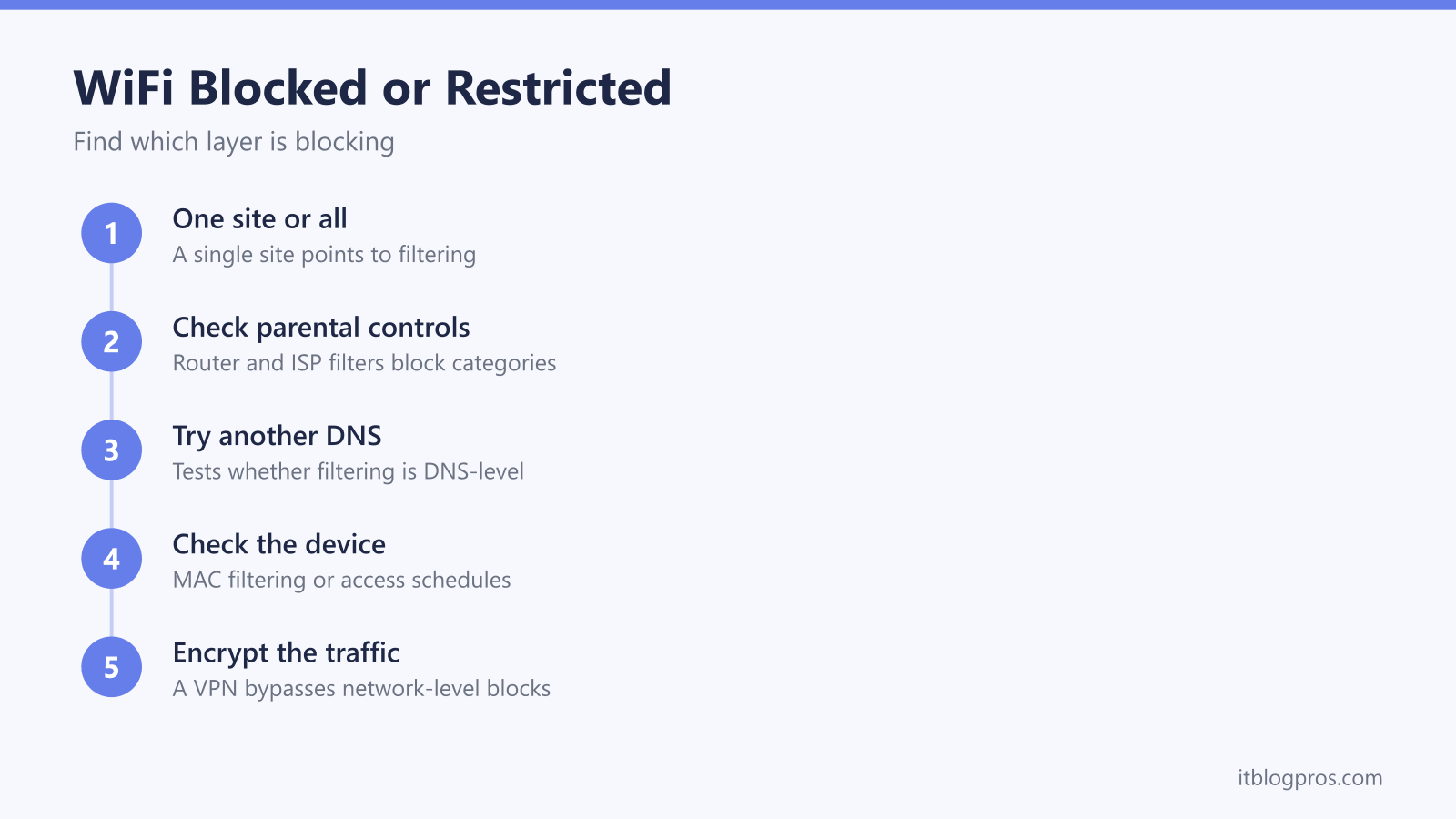
The whole method compresses into a short sequence:
- Load the site on mobile data to prove the site is healthy and the block is on the WiFi path.
- Use the one-versus-all grid to name the layer: one site everywhere points upstream, one device shut out points at the router.
- Check the router admin pages for parental controls, schedules, MAC filtering and paused devices.
- Check the ISP account portal for the provider's content filter, remembering court-ordered blocks stay regardless.
- Swap one device's DNS to a plain resolver to test the DNS layer.
- On a network someone else owns, ask the owner rather than bypass the policy, and save the VPN for lines where the choice is yours.
Worked through in that order, the layer reveals itself within a few minutes, and the matching off switch does the rest.