Xfinity internet that keeps cutting out is one of the hardest faults to get taken seriously, because it usually behaves itself by the time anyone looks at it. The useful news is that a dropping cable connection leaves a trail, and the pattern of what goes offline and when narrows the cause to one of four places long before you get on the phone to Comcast. This guide works that pattern from the fastest checks through to the point where the fault is provably Comcast's to fix.
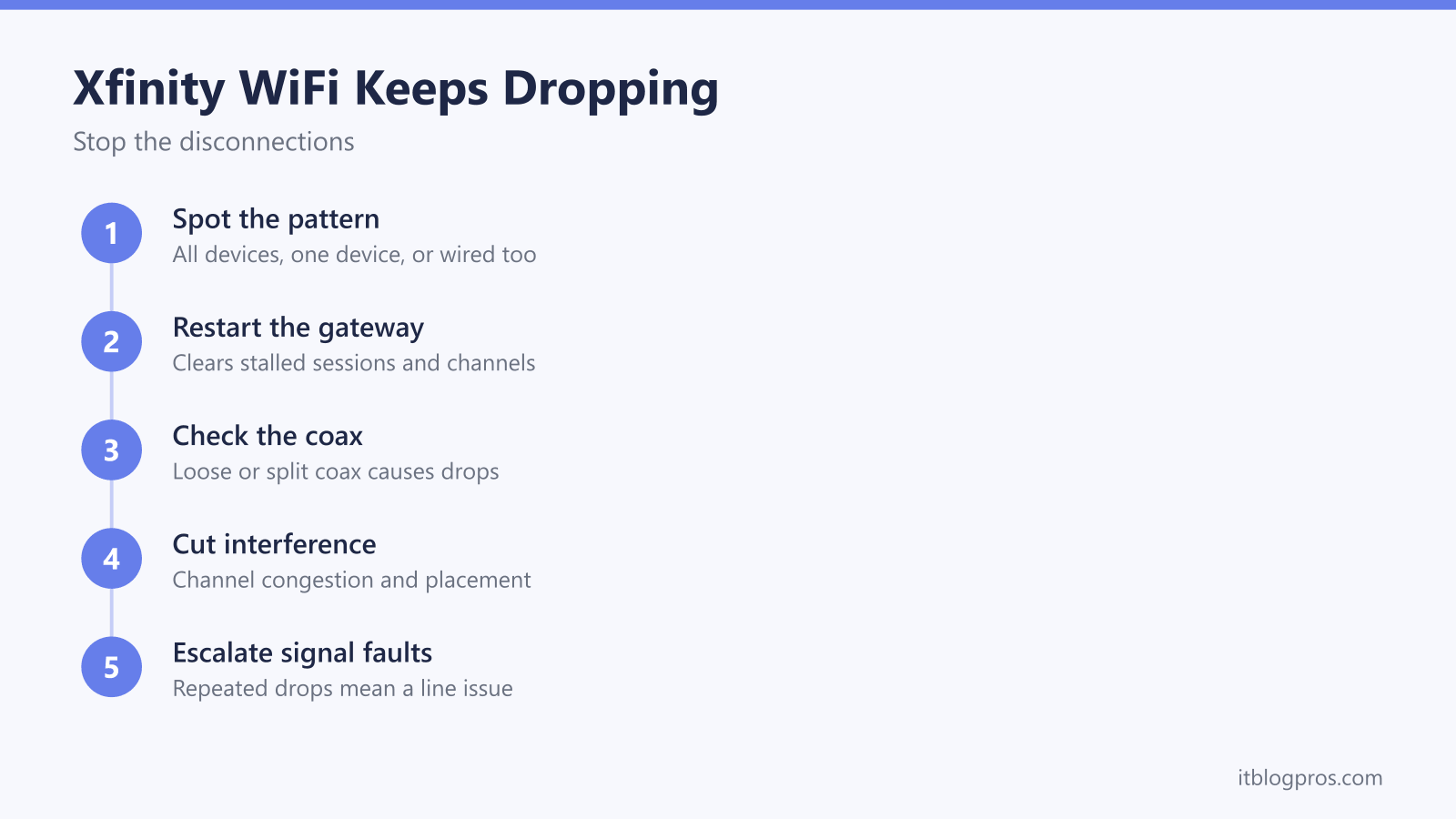
Xfinity WiFi usually keeps dropping for one of four reasons: the coax path into the gateway, the gateway itself, WiFi interference, or a fault on Comcast's line. Start by checking whether every device drops at once or only one, and whether wired devices drop too. Restart the gateway, tighten and simplify the coax, then escalate to a technician with a log of the drops.
Key Takeaways
- The pattern of the drop identifies the cause: everything at once points at the gateway or the line, a single device points at that device, and wired devices dropping too rules the WiFi out entirely.
- A gateway restart clears stalled sessions and forces a channel rescan, so it is the right first move, but a fix that only lasts a day or two is masking a deeper fault.
- Coax is where most repeated Xfinity drops actually live, because a loose connector, a corroded fitting or a chain of unnecessary splitters lets the signal drift out of spec and the modem lose lock.
- Advanced Security and Comcast's unannounced firmware pushes cause their own distinctive drops, which look nothing like a signal fault once you know the pattern.
- Repeated drops on a clean, direct in-home coax run are Comcast's to fix, and a dated outage log backed by T3 and T4 timeout entries from the gateway's own event log gets a technician sent to the drop and the tap rather than swapping the gateway again.
What Drops and When Points Straight at the Cause
Before touching anything, spend one drop watching what happens. Cable connections fail in a small number of distinct ways, and each one leaves a different fingerprint.
| What happens during a drop | Where the fault almost certainly is |
|---|---|
| Every device loses the connection at the same moment | The gateway or the coax line feeding it |
| One phone or laptop drops while everything else stays online | That device, its adapter or its WiFi link |
| Wired computers drop as well as wireless ones | The line or the gateway, never the WiFi |
| Only devices far from the gateway drop | WiFi coverage, interference or band steering |
| Drops cluster at the same time each evening or overnight | Congestion, or a scheduled gateway process |
That third row is the most valuable test here. Plug a laptop or games console into the gateway with an Ethernet cable and leave it running. If the wired device goes down at the same second as the WiFi, every wireless fix on the internet is wasted effort, because the problem sits upstream of the radios.
Check for a reported outage while you are at it, using the Xfinity app on cellular data or the Xfinity Status Center at xfinity.com. Reporting a drop through the app helps even when nothing is listed, because repeated reports from one address are what get a fault investigated.
A Gateway Restart Clears Stalled Sessions
An xFi gateway is a modem, router, DHCP server, firewall and several radios in one box, expected to run for months without a break. Over that time its connection tracking table fills, DHCP leases go stale and the radios hold onto old client state. A restart tears all of that down, rebuilds it, and makes the gateway rescan the airwaves for fresh WiFi channels.
Comcast supports several ways to do it. The Xfinity app has a restart option under the internet or devices section, xfinity.com offers the same from the account pages, and Xfinity Assistant can send a refresh signal out to the gateway. Failing those, unplug the power for about 60 seconds. Give it five to ten minutes to come back and leave it alone while the light cycles; if it settles on amber rather than white, the Xfinity router blinking orange light guide explains what the gateway is reporting.
Avoid the factory reset, which wipes the network name, password and every setting for a problem that is almost never configuration. One detail matters more than any of this: if a restart buys a day or two of stability and the drops then return, the restart is not the fix. That pattern is the signature of a signal fault the gateway is temporarily papering over.
Coax Signal Problems Are the Most Common Real Cause
This is the cause that has no equivalent on fiber or DSL, and it is where most stubborn Xfinity drops end up. Everything arrives over a coaxial cable running from a tap in the street, through a drop cable and a ground block, into the wall and finally into the gateway. That signal has to sit inside a fairly narrow window in both directions. When the level drifts outside it, the modem loses lock, re-ranges to find the signal again, and comes back a handful of seconds later. From the sofa, that reads as a random dropout with no explanation.
Four things push the signal out of that window, and three of them are inside the house:
- Loose or finger-tight connectors. Every coax fitting should be snug. Tighten each one at the wall plate, the gateway and any joint by hand, then give it a light nip with a wrench. Finger-tight alone is a very common cause of intermittent faults.
- Corrosion and damage. Look for green or white residue on the connector threads and center wire, and for kinks, crushed sections or sharp bends, especially where cable has been trapped behind furniture or under a door. Damaged cable produces faults that come and go with temperature and humidity.
- Unnecessary splitters. Every split shares the signal between its outputs, so an old TV install that left two or three splitters in the path can leave the gateway running right on the edge. Pull out any splitter feeding nothing and run the gateway straight off the wall outlet where the line does not also serve TV boxes. Where a split is genuinely needed, use a cable-rated bi-directional splitter and cap the unused ports.
- The line outside the house. Drops that show up on hot afternoons, in heavy rain or after wind point at the drop cable, the ground block or the tap, and that part is not a homeowner job.
Resist the urge to chase specific signal figures found on forums. Acceptable levels vary by plan, gateway model and channel, and readings that look fine one second can swing out of spec the next, which is precisely what produces an intermittent drop rather than a dead line. A Comcast technician measures those levels properly at the tap and at the modem. The job at home is to make the in-home path as short, tight and simple as possible, so anything left is provably outside.
The Gateway Generation Decides What Is Worth Checking
Comcast has shipped several generations of gateway, and which one is on the shelf changes both what the hardware can do and what its admin pages will show. Xfinity lists each generation under a friendly name with a set of manufacturer model numbers behind it.
| Gateway | Model numbers | WiFi standard | Ethernet ports | Maximum data throughput |
|---|---|---|---|---|
| XB6 | TG3482G, CGM4140COM | WiFi 5 | 2 | 1 Gbps |
| XB7 | CGM4331COM, TG4482A | WiFi 6 | 4 | 2.5 Gbps |
| XB8 | CGM4981COM | WiFi 6E | 4 | 2.5 Gbps |
| XB9 | CWA438TCOM | WiFi 7 | 3 | Up to 2 Gbps down, 300 Mbps up |
| XB10 | SG417DBCT, CGM601TCOM, CGM601TCM | WiFi 7 | 4 | 10 Gbps |
Xfinity quotes the XB9 as current network bandwidth rather than a maximum throughput figure, and describes it as a DOCSIS 3.1 gateway that widens WiFi 7 and 6GHz coverage across the existing DOCSIS 3.1 footprint. The XB10 is the first Xfinity device to pair Unified DOCSIS 4.0 with the WiFi 7 standard. To find which one is in the house, read the model number on the equipment's bottom panel, open the Devices page on xfinity.com, or check the Xfinity app.
The generation matters for drops in one concrete way beyond the radios. Xfinity rates the XB6 for 30 simultaneous 2.4GHz clients and 75 on 5GHz, the XB7 for 75 on each of its two bands, and the XB8 and XB10 for 100 on each of their three, so a house that has quietly accumulated dozens of smart plugs, bulbs and sensors sits far closer to the ceiling on an older gateway than on a current one.
T3 and T4 Timeouts Name the Fault in the Gateway's Own Log
Every DOCSIS modem runs a constant check-in with the equipment at the far end of the coax, and it writes the failures down. Two entry types in that log are worth more than everything else on it.
A T3 timeout is a ranging failure. Cisco's DOCSIS engineering documentation defines T3 as a 200 millisecond range response timer, and that is exactly what it is: the modem sends a ranging request up to the head end and starts the clock waiting for the ranging response. When no response comes back the counter increments, the modem tries again at a higher transmit power, and after 16 failed attempts it resets its cable interface and restarts registration. The cause sits upstream, in noise on the return path, in timing faults, or in an upstream path that is attenuated or broken. One nuance keeps this honest. Cisco's guidance is that around three T3 timeouts every 20 seconds is not cause for alarm, so scattered T3 entries are ordinary cable behavior rather than proof of a fault. A log filling with them, in bursts that line up with the drops, is a different matter.
A T4 timeout is the more serious of the two, because it means the modem stopped hearing the head end altogether. The head end polls each modem with a station maintenance message, and every one of those resets a countdown inside the modem. When the countdown expires with no station maintenance received, the modem drops its cable interface and starts scanning for a downstream signal again, which is a full re-registration rather than a momentary stumble. Cisco's base figures are a poll at least every 20 seconds and a 30 second timer, measured on its own head end equipment and describing a single upstream channel. Every gateway in the table above bonds channels, and bonded modems carry a multiplied timer, four times the base by default, so a real-world T4 on this hardware is a device that heard nothing for around two minutes.
What a T4 does not do is name the direction on its own, and it is worth being careful here because the obvious reading is wrong half the time. Cisco gives the downstream case directly: with a disconnected downstream fiber link the modem never gets its station maintenance opportunity. The same document then works the opposite case just as fully, where an upstream fiber is pulled, the head end responds by stopping downstream sync and station maintenance, and the modem times out 30 seconds later and starts rescanning. A T4 says the conversation stopped. It does not say which end stopped talking.
That split is the reason the log is worth opening. A run of T3 entries says the gateway's transmissions are not getting back cleanly, which is what a corroded connector, a splitter chain or a damaged upstream path produces. T4 entries say the gateway lost the head end altogether and had to re-register, which is the more serious symptom but the less specific clue, since an upstream path bad enough to fail ranging can end in a T4 just as a downstream fault can. Neither has anything to do with the WiFi, and both hand a technician something measurable instead of another reboot to suggest.
Reaching the Log and Reading the Levels
Comcast gates the Gateway Admin Tool behind a toggle in the Xfinity app and advises leaving it off when it is not in use, so the pages have to be switched on before there is anything to read. In the app, open the WiFi tab, select View WiFi equipment, open Advanced settings, choose Admin Tool online access, slide the toggle to Allow Admin Tool access, and save. A first-time enable prompts for a new admin password. After that, a device connected to the home network reaches the tool at http://10.0.0.1 with the username admin and that new password. Anyone who enabled access before February 2026 can still use the default password printed on the sticker underneath the gateway. Xfinity lists the toggle as available on newer gateways including the XB6, XB7, XB8 and XB10, and missing from older hardware such as the XB3 and the Wireless Gateway 1 and 2.
What the tool exposes beyond the sign-in varies by model and firmware, and Comcast does not document the menus, so there is no single path to a log that holds across the range. Some gateways surface a connection or troubleshooting page carrying ranging and timeout entries and some do not, which is why an owned modem stays the steadier source of evidence. Netgear publishes guideline figures for its own cable modems, whose connection page sits at http://192.168.100.1: downstream power between -7 and +7 dBmV and upstream power between 38 and 48 dBmV are what it calls good levels. Cisco's network design guidance lands in the same territory from the operator's side, expecting modems on a well built plant to transmit between 40 and 48 dBmV. Those figures are guidance rather than a verdict, and the warning earlier on this page still stands: levels vary by plan, gateway model, channel and modulation, and a technician measures them properly at the tap. The useful reading is the direction rather than the decimal, because an upstream level pressed against the top of that band means the gateway is transmitting about as loudly as it is permitted to, which is exactly what a long, split or lossy cable run forces it to do. Signal-to-noise figures belong in the screenshot too, though no single published threshold covers every plan, channel and modulation scheme, so they are evidence for the technician rather than a verdict from the sofa.
Interference and Placement Explain Drops That Only Hit WiFi
If wired devices stay solid through every drop, the coax is fine and the radios are the problem. Two things dominate. The first is congestion on 2.4GHz, a band that reaches furthest but is shared with microwaves, cordless phones, baby monitors, Bluetooth gear and every neighboring network in an apartment building. Interference there rises and falls through the day, which is why WiFi-only drops cluster in the evening. The 5GHz band is much cleaner but travels less well through walls, so devices at the edge of its range flap between bands and lose the connection on each switch.
The second is where the gateway sits. Installers put it wherever the coax enters, often a corner baseboard, a closet or a basement, and that is rarely where coverage is needed. A gateway in a TV cabinet, on the floor, behind a metal appliance or next to a mirror loses a large share of its usable range. Standing it upright in open air at waist height or above, away from other electronics, costs nothing and regularly ends edge-of-range dropping on its own.
Xfinity gateways expose very little manual WiFi control next to a retail router, so placement and interference reduction carry more weight here than channel tweaking. Where the symptom is sluggishness rather than clean disconnections, the Xfinity WiFi slow and not working properly guide covers the speed side of the same hardware.
Advanced Security and Firmware Updates Cause Their Own Drops
Two gateway features produce drops that look mysterious until the pattern clicks.
xFi Advanced Security inspects traffic passing through the gateway and blocks whatever it flags as a risk. It works well enough most of the time, but false positives are a recurring theme on Comcast's own community forums, with legitimate sites and devices blocked and the in-app advice offering little beyond a device restart. The giveaway is the shape of the symptom, because Advanced Security does not knock the whole network offline, it breaks one thing: a work VPN that will not hold, one smart-home device stuck offline, a single site timing out while everything else loads. Turning it off in the Xfinity app is a fair diagnostic step, though some accounts report the control missing or unavailable, and it is bundled into the xFi Complete package.
Firmware updates are the other. Comcast pushes firmware to rented gateways on its own schedule, without warning and with no way to decline, and the gateway reboots to apply it. Everything drops for several minutes while that runs, often late at night or early in the morning, and the status light usually goes amber. A short outage at roughly the same hour on scattered nights, with everything fine in between, fits this far better than a cable fault. Never unplug a gateway mid-update, because interrupting one can leave the box unusable.
Repeated Drops on Clean Cabling Are Comcast's Problem
Once the in-home path is a single tight coax run with no splitters, the gateway has been restarted, and wired devices are still dropping, everything left is on Comcast's side of the wall: the drop cable to the pole or pedestal, the ground block, the tap, a failing amplifier or the shared node serving the street. None of that is fixable from indoors, and no amount of gateway swapping will touch it.
Getting it fixed is an evidence exercise, because intermittent faults get closed as resolved more often than any other kind:
- Keep a log. Date, time, rough duration, and whether the wired device went down too. A page of timestamps changes the conversation completely.
- Capture the failures. Leave a continuous ping running to a public address from a wired computer and note when it starts timing out, which gives precise times rather than estimates.
- Screenshot the event log where the gateway exposes one. Count the T3 and T4 entries and note the times they cluster, because a timestamped run of timeouts is the part of the evidence that cannot be waved away. Not every Xfinity firmware shows a log, and an owned modem at http://192.168.100.1 is the more reliable place to find one. Capture the channel levels in the same sitting.
- Ask for the right work. Request that the drop cable, ground block and tap are checked and levels measured, rather than accepting another gateway swap. Take the job number, and if the fault returns after a visit, ask for escalation to a maintenance crew instead of a third in-home appointment.
- Ask about charges first. Whether a visit is billable depends on the account and on where the fault is found, so confirm it before booking.
If the gateway itself is the suspect, swapping it at an Xfinity store is quick and needs no appointment, which is worth doing before a technician visit rather than instead of one.
Bridge Mode and Your Own Modem Fix the Hardware Half
For anyone whose rented gateway keeps failing, there are two ways out, and both are honest about what they cannot do.
The first is bridge mode. The gateway stays in place but stops routing, switches off its WiFi and DHCP, and hands the connection straight to a router or mesh system of your choosing. That fixes the wireless half convincingly, because a decent retail router or mesh beats the gateway's radios and gives real control over bands and channels. The trade is that xFi app controls, xFi Pods and gateway-level Advanced Security all stop working, and the rental fee carries on. The Xfinity bridge mode and 10.0.0.1 login walkthrough covers the steps and what changes afterward.
The second is owning the modem outright. An Xfinity-approved DOCSIS 3.1 modem plus your own router replaces the rented box entirely, ends the roughly $15 monthly fee and takes the failing hardware out of the equation for good. There is a diagnostic bonus: most third-party modems serve a status page at 192.168.100.1 listing downstream and upstream channel levels alongside an event log, which is exactly the evidence a rented gateway's locked-down firmware tends to hide. The guide to dropping the Xfinity gateway rental and buying your own modem covers the approved-modem requirement and the payback math.
Neither route fixes coax. A damaged cable, a bad splitter or a fault at the tap will drop a brand new modem exactly as reliably as it dropped the old gateway. What both do is remove the hardware variable permanently, so the next drop has one fewer place to hide.