
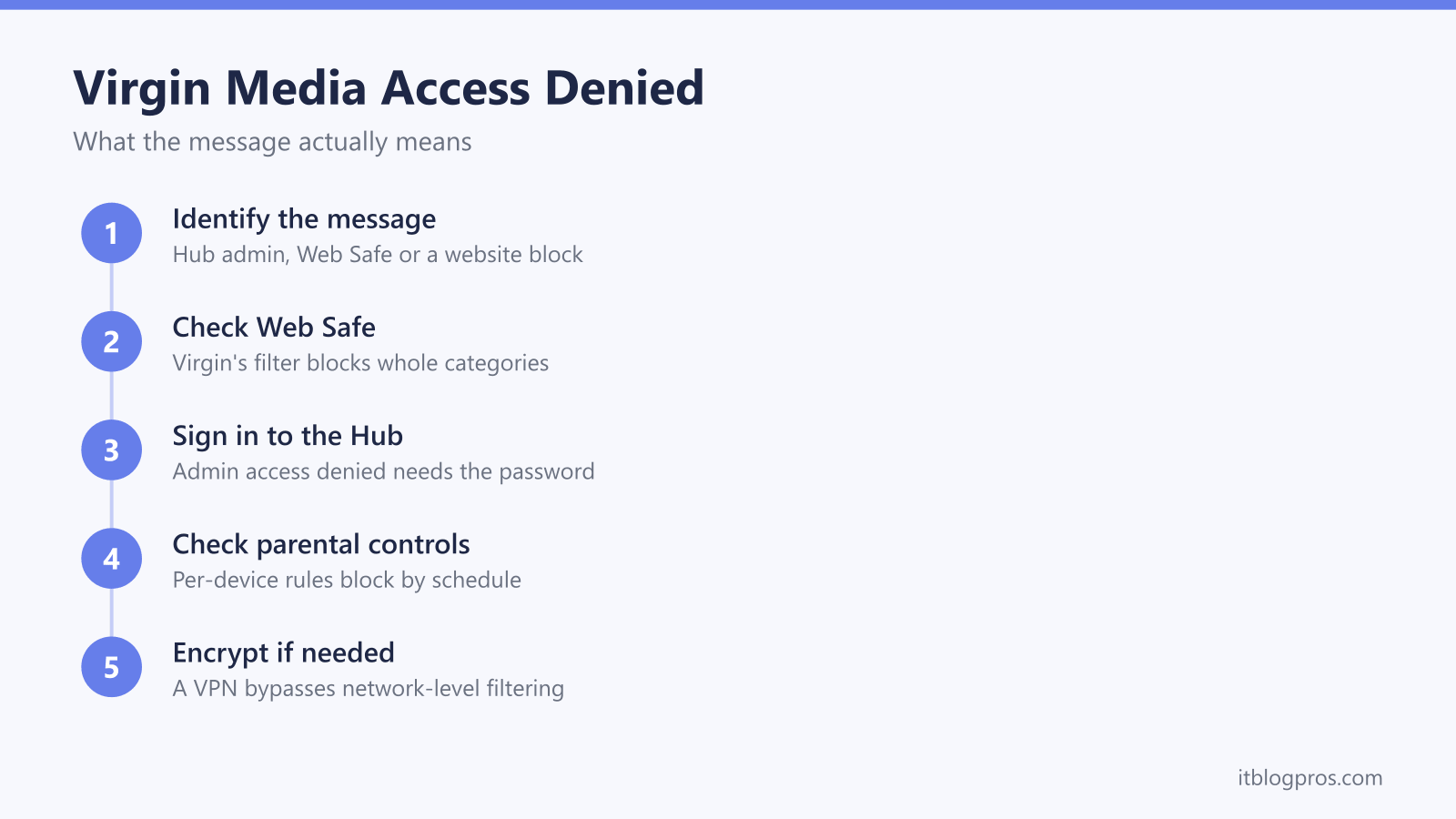
Access denied is one of those messages that tells you almost nothing on its own. On a Virgin Media connection it turns up in three quite separate situations, and the fix for one does nothing at all for the other two. This guide sorts out which version you are looking at, then gives the steps that actually clear it.
Virgin Media access denied is not one fault. The message appears when Essential Security, the filter formerly called Web Safe, blocks a site by category, when the Hub settings page at 192.168.0.1 refuses a login, or when a device rule or WiFi schedule cuts a single device off. Working out which of the three you are seeing decides the fix, because the three live in completely different places.
Key Takeaways
- Access denied on Virgin Media comes from one of three places: the Essential Security content filter, the Hub settings login, or a rule applied to a single device.
- Essential Security is the current name for what used to be Web Safe, and only the main account holder can change it, from Account Settings in My Virgin Media.
- Court-ordered blocks sit outside your account settings and cannot be switched off, because Virgin Media is legally required to keep them in place.
- Access denied at 192.168.0.1 is a login problem, so start with the settings password, which Virgin says is on the base of the hub, and remember that Virgin says modem mode moves the page to 192.168.100.1.
- A VPN encrypts traffic so category filtering on your own line has nothing to classify, but it does nothing for a hub login, a device rule, or the law.
Access denied covers three different problems on a Virgin Media line
The first version is a website blocked on the broadband itself. Virgin Media serves a page explaining that the site has been blocked, and because the filtering happens on the line, every device in the house sees the same thing. On sites using HTTPS, which is nearly all of them now, the browser often shows its own generic connection error instead of the Virgin Media notice, which is why the block can look like a broken website.
The second version is the Hub settings page turning you away. You type 192.168.0.1 into a browser expecting the settings, and instead get wording about not having permission to access the page. Nothing else is wrong: the internet still works, streaming still works, only the control panel is out of reach.
The third version is a single device being cut off while the rest of the house is fine. That points at a parental control, a WiFi pause or a schedule applied to that one device, either on the account or in the Virgin Media Connect app.
Narrowing it down takes three quick checks
Start with scope, because scope identifies the layer faster than any setting page will.
Check whether one site is affected or all of them. One site failing while everything else loads is filtering or a court order. Every site failing is a connection problem, not a block.
Check whether one device is affected or all of them. A single phone or laptop offline while other devices browse happily means the rule is aimed at that device, or the trouble is in its own software rather than on the network.
Check the same site on mobile data with WiFi switched off. If it loads on 4G or 5G and not on the home connection, the block is somewhere on the Virgin Media path. If it fails on both, the site itself is the problem. Our guide to working out which layer is blocking your WiFi walks through the same method for any provider.
Essential Security is the content filter that used to be called Web Safe
Virgin Media includes a network-level filter with its broadband at no extra cost. Older guides and forum posts call it Web Safe, with Child Safe and Virus Safe as its two halves. Virgin Media's own help pages now call the whole thing Essential Security, so both names describe the same feature and searching for either will land you in the right place.
It does two jobs. One is blocking sites known to be malicious or fraudulent, which runs quietly in the background and is worth keeping on. The other is parental controls, where you choose which categories of content to block. The categories Virgin Media lists include pornography, violence, crime, hate, drugs, hacking, suicide and self-harm, and address hiding. Alongside the categories you can allow or block specific websites by name and set a timer so the filtering only applies during chosen hours.
The settings live in your account rather than on the hub. Sign in at my.virginmedia.com or open the My Virgin Media app, go to Account Settings, then Online Security. Only the main account holder can turn the protection on or off, which catches out plenty of households where a partner or a housemate set the broadband up. After changing a setting, restart the device that was blocked, because browsers and phones cache the old result for a while.
Before switching the whole thing off, consider whether the site was simply put in the wrong bucket. Category filtering is automated and imperfect, and a legitimate forum, health resource or hobby site can land under a category nobody would expect. Adding that one address to the allowed list keeps the malware protection intact and unblocks what you actually wanted.
If you would rather category filtering did not classify your traffic in the first place, a VPN encrypts the connection between your device and the VPN server, so the filter on your line has no destination to read and no category to match.
Bypass Virgin website blocks with encryption →
One caveat matters here. Not every block on a Virgin Media line is a setting, and the blocks that exist because a court ordered them exist for legal reasons. Encryption is a privacy tool, not a licence to ignore the law, and this guide is not suggesting otherwise.
Court orders sit outside your account settings
Virgin Media blocks a set of websites because the High Court has ordered it to, most commonly in cases brought over copyright or trademark infringement. When you hit one of these, the page you see says Virgin Media has received an order from the High Court requiring it to prevent access to the site.
Two things follow from that. First, these blocks do not appear anywhere in Essential Security, so turning parental controls off will not lift them. Second, Virgin Media publishes a list of the court orders it is acting on in its help section, so you can check whether a site you cannot reach is on it. Virgin Media also notes that customers affected by the orders may have the right to apply to the High Court to vary or discharge them, which is the proper route if you believe a block is wrong.
Access denied on the Hub settings page is a login problem
When the message appears at 192.168.0.1, nothing is blocking the internet. Work through the usual causes in order.
Confirm the device is connected to the Virgin Media Hub itself. A device on a separate mesh system, a range extender, a neighbour's network or mobile data is not talking to the hub at all. It is also worth moving off the guest network if you use one, since guest networks are deliberately walled off from the rest of the home network. A wired connection into a LAN port takes WiFi out of the question.
Type the address into the browser address bar rather than a search box, with no www and no https in front of it. Then check the password. Virgin Media's help page on changing the WiFi name and password says the settings password is on a label on the base of the Hub and is different from the WiFi password, which is also on the base. Our Virgin Media Hub login guide covers the login step by step, and the wider router admin password guide explains why the admin password and the WiFi key are two different things on every make of router.
If the hub is already in modem mode, Virgin's reset and modem mode help page says the settings page moves to 192.168.100.1, so try that address before assuming anything is broken. And if the settings password was changed at some point and nobody wrote down the new one, Virgin's help page on changing the WiFi name and password says you need to reset the Hub to revert it to the default settings password. Virgin's reset help page says to press the reset button on the back or base of the Hub with a pen for 10 seconds, then give it a few minutes to reboot. Virgin says a reset also returns any other changes, including a custom WiFi name and password, to the defaults, so treat it as a last resort.
Parental controls and per-device rules live in two places
Account-level parental controls in Essential Security apply to the whole line, so they affect every device equally. Anything that hits one device only is coming from somewhere else.
The Virgin Media Connect app can pause WiFi for individual devices, which is designed for bedtimes and homework and is easy to leave switched on by accident. The hub's own settings page also lists connected devices and carries firewall and access control options. Checking both is quick, and a paused device is a common explanation for a phone that is on the WiFi yet cannot load anything.
If the device is clear on both counts, look at the device itself. Browser extensions, screen time and content restrictions on iOS and Android, third-party antivirus with web protection, and work or school management profiles all produce their own access denied pages that have nothing to do with the broadband.
Public, guest and work networks show their own access denied pages
Virgin Media WiFi hotspots, hotel and cafe networks, workplaces and school connections all run their own filtering, and the rules belong to whoever owns that network. A message mentioning Virgin Media on a public hotspot comes from the hotspot, not from your home account, so nothing you change at home will affect it.
Captive portals add another wrinkle. On many public networks the connection looks live but every request is redirected until you accept the terms on a sign-in page, which reads as a block until that page appears. Opening a plain HTTP address usually forces the portal to load. Beyond that, the owner of the network decides what is reachable, and the only proper route is to ask them.
A VPN encrypts past category filtering, and that is where it stops
A VPN builds an encrypted tunnel from your device to a server run by the VPN provider, and it handles your DNS lookups inside that tunnel. Category filtering on your broadband line works by seeing which site you are asking for, so once that is encrypted there is nothing left for the filter to match against.
What it does not do is just as important. A VPN will not get you into a hub settings page, will not undo a device pause set by someone in your household, and will not restore a connection that is down because of a line fault. On a network you do not control, using one may breach the acceptable use policy you agreed to. And court-ordered blocks exist because of a legal ruling, so treating a VPN as a way around them misses the point entirely. If you do want one on a Virgin line, our best VPN for Virgin Media guide explains what actually matters on a fast cable connection.
When nothing loads at all, the problem is the connection rather than a block
If no website works and there is no message explaining why, this is not filtering. It is a connection problem, and the diagnosis is different.
Check the hub's status lights first, then Virgin Media's service status tool, which Virgin's WiFi not working help page points to for outages in your area. Reboot the hub: Virgin's reset help page says to switch it off at the wall, wait 10 seconds, turn it back on and wait 5 to 10 minutes. Look at the coaxial cable where it joins the wall socket and make sure it is finger tight.
Faults in the street cabinet and the cabling outside the property are a genuine cause of a dead Virgin Media line, and they are also the one category a customer cannot inspect or repair. If the hub reports no signal and there is no published outage, the practical step is to report the fault to Virgin Media and let them arrange an engineer visit, because the equipment involved is theirs and sits outside your home.