A CenturyLink connection that has stopped working is almost always one of three things: an outage on the network, a fault on the line into the property, or equipment that has stalled. The order you check them in matters, because half an hour spent restarting a modem is wasted if the fault sits out in the street. This guide works through those three in the order that finds the answer fastest, and covers the one CenturyLink quirk that catches people out when they swap in their own router.
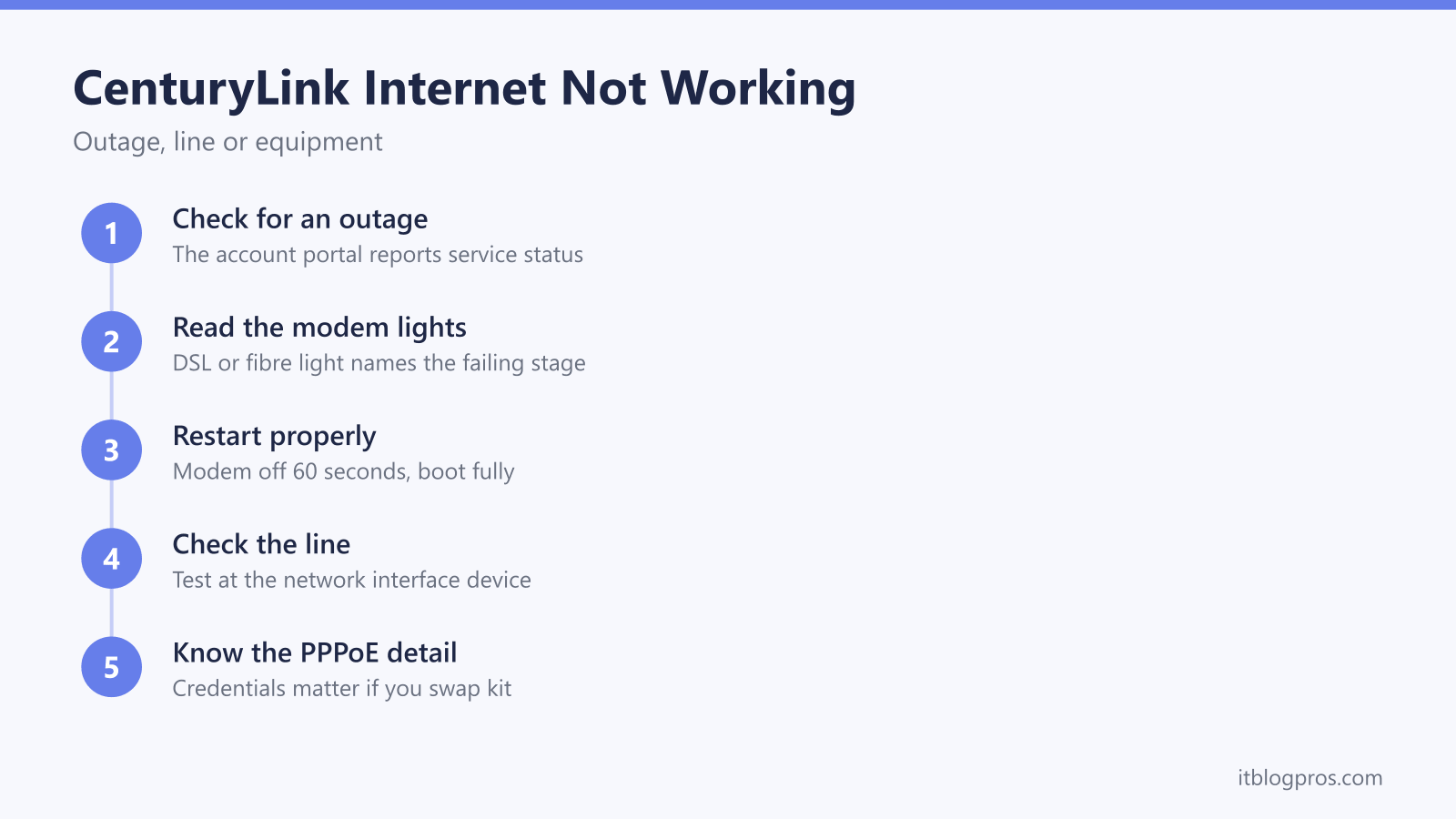
Start by ruling out an area outage in the CenturyLink or Quantum Fiber account portal or app, since nothing you do at home fixes a network fault. If the account looks healthy, read the modem lights to see which stage failed, power the modem down at the wall for 60 seconds, then test the line at the network interface device before booking a technician.
Key Takeaways
- An area outage shows up on the CenturyLink or Quantum Fiber account rather than on a third-party tracker, which only counts other people's reports.
- The lights read by role: power, a DSL or broadband light for the link to the network, an internet light for the session on top of it, and WiFi lights for the home side only.
- A proper restart is 60 seconds unplugged at the wall, which drops a stalled session and forces the line to resync, and it is not the same thing as a factory reset.
- The network interface device is the dividing line between your wiring and CenturyLink's, and the test jack on a DSL property settles which side the fault is on.
- CenturyLink lines have historically used PPPoE, so a third-party router needs an internet username and password from your account before it will connect at all.
Rule out an outage before changing anything at home
Nothing done inside the house fixes a fault on CenturyLink's network, so the first job is deciding whether the problem belongs to you at all.
The only outage check tied to your actual address is the one on your own account. Sign in to the account portal on centurylink.com or open the CenturyLink app, and for fiber service look in the Quantum Fiber account or app instead. Service alerts, planned maintenance notices and any repair ticket already raised against your line show up there, and some accounts also offer text updates on an open outage, which saves sitting on hold.
Third-party outage trackers are worth a glance but never a verdict. They only count reports submitted by other users, so a spike shows that something large is under way somewhere while a flat graph proves very little. A fault affecting one street or one household never registers on them, and that is exactly the kind of fault most people are looking at.
One more account-side check is worth thirty seconds. Make sure the service has not been suspended over an unpaid bill, which looks identical to an outage from the sofa. There are ways to settle a CenturyLink bill without signing in if the account login is the very thing you cannot reach.
The modem lights name the stage that failed
The status panel is the fastest triage tool in the house, because each light covers a different stage of the connection and the first one that looks wrong tells you where to stop looking. Panels differ a great deal across CenturyLink's DSL and fiber generations, and colors and blink patterns are not consistent between models, so read them by role rather than by color:
- Power confirms the unit is on and has finished booting.
- DSL or broadband covers the link to the network. On DSL that means the modem locking onto the line, which is the stage that fails when the copper is at fault.
- Internet covers the session that runs on top of that link, which is where an authentication or PPPoE problem shows itself.
- WiFi and Ethernet or LAN cover the home side only, so trouble here never explains a whole-house outage.
The pattern that matters most is the relationship between the last two. A broadband light that will not settle points at the line. A healthy broadband light sitting next to a failed internet light points at the session, the credentials or the account. Match the exact colors and blink codes to the light guide for your model number on CenturyLink's help pages, because inventing a meaning for a color is how people end up replacing hardware that was working fine.
A proper restart means 60 seconds off at the wall
A restart is not superstition. Powering the modem down clears volatile memory, drops a stalled PPPoE or DHCP session so it has to be negotiated again, and forces a DSL line to resync from scratch. Plenty of faults that look permanent are just a dead session the modem is refusing to let go of.
Do it properly:
- Unplug the modem at the wall rather than pressing a button on the back.
- Leave it off for a full 60 seconds so the unit fully powers down and the network side registers the session as gone.
- Plug it back in and leave it completely alone until the lights settle, which can take several minutes.
- If a separate router sits behind the modem, restart that only once the modem has finished booting.
Resist the urge to press the recessed reset button while waiting. That is a factory reset, which wipes the WiFi name, the WiFi password, the admin password and any connection credentials the unit is storing, and it leaves you rebuilding the whole setup on top of a fault that is still there. The reset ladder for US ISP routers sets out when each level of reset is actually warranted.
The line side starts at the network interface device
If the broadband light never locks on, the fault is on the line, and the boundary between CenturyLink's responsibility and yours is the network interface device.
The NID is the small weatherproof box where the line enters the property, usually mounted on an outside wall and sometimes found in a basement, garage or utility closet. It has two sides. The sealed side belongs to the provider and should not be opened. The customer side opens with a screwdriver, and on traditional phone-line properties it contains a test jack: unplugging the short cord in that jack disconnects all the inside wiring from the line.
That is the single most useful test available on a DSL property. Plug a modem or a corded phone straight into the test jack. If the line works there and fails indoors, the fault is in your own wiring or in something plugged into it. If it fails at the test jack too, the fault is outside and only CenturyLink can fix it.
Fiber service works differently. The equivalent box is the optical network terminal, there is no customer test jack, and nothing inside it should be opened or disconnected beyond its power supply.
Two more line-side classics apply on DSL. Every phone, fax machine or alarm dialer sharing the line needs a filter, and one unfiltered device can drag the whole connection down. Old extension wiring and cheap splitters cause the same trouble, which is why the test jack result matters so much before anyone books a visit.
CenturyLink lines have historically used a PPPoE username and password
This is the detail that catches out nearly everyone who swaps CenturyLink's modem for their own equipment.
CenturyLink connections have historically authenticated with PPPoE, meaning the router has to log in to the network with an internet username and password before any traffic flows. Those credentials are not the same as the login for the billing account, and they are not printed on the label of a router you bought yourself. A brand new router with faultless hardware will sit there reporting no internet indefinitely if that field is left empty.
The credentials belong to your CenturyLink account, so the practical route is to look for them in the account portal or ask CenturyLink support to provide them. Whether your particular service still uses PPPoE depends on the service type and the market, and fiber setups can behave differently, so confirm the current requirement with CenturyLink rather than trusting a value copied from a forum thread. Any page handing over a ready-made username and password format is guessing.
Two things are worth doing before the old modem comes out. Note the connection type and any addressing settings shown in its admin pages, and check whether that modem is rented, since returning it is what actually stops the rental charge.
Your own router needs the right connection type more than the biggest spec sheet
There is no need for a shopping list here, because the real requirement is short and it is mostly about compatibility rather than headline numbers.
- It has to speak the connection. On DSL that means either a combined modem and router supporting the line type CenturyLink uses at your address, or a compatible modem feeding a router of your choice. A router on its own has nothing to plug the line into.
- It has to hold the credentials. If the line uses PPPoE, the router needs a PPPoE mode where the username and password can be entered. Most consumer routers have this, but it is worth checking the setup screens before committing.
- It has to cover the building. Coverage comes down to the number and placement of access points, not the speed rating printed on the box, and one router in the corner of a long house will leave dead spots whatever it cost.
Fiber service, sold as Quantum Fiber in many markets, changes the shape of this. The optical terminal stays where it is and your own router plugs into it over Ethernet, which makes the hardware choice simpler. Anyone going that route and wanting modern addressing working properly can follow the Quantum Fiber IPv6 setup walkthrough. Bear in mind that support for third-party equipment is limited, so keeping the provider's modem on the shelf makes future fault-finding much easier.
Coverage problems are a WiFi fix, not a connection fix
Not everything filed under CenturyLink not working is CenturyLink's fault. If the connection is solid on a device sitting next to the modem and unusable in a back bedroom, the line is fine and the WiFi is the constraint.
That is a different repair with different tools. Moving the modem out of a cabinet, off the floor and away from metal and mirrors usually helps more than any purchase. If the layout genuinely defeats a single router, the choice sits between an extender and a mesh system, and the two behave very differently once installed, which the extender versus mesh comparison lays out in detail. Both fix coverage, and neither raises the speed the line itself delivers, so any promise of more speed from a range extender is a sales pitch rather than a fix.
Repeated disconnections are a line fault until proven otherwise
A connection that works, drops and returns on its own is a different problem from one that is simply dead, and it is rarely solved by another restart.
Intermittent drops on copper usually trace back to something physical: moisture in a joint, corroded or damaged wiring, a poor connection at the NID, or noise from a device sharing the line. Faults like these follow patterns, and the pattern is the best evidence available. Keep a short log of the date, the time, how long each drop lasted and what the broadband light was doing, and note whether the drops track wet weather or a particular hour of the day.
Take that log to CenturyLink instead of starting the script again from the top. Ask for a line test, ask whether their systems show errors or repeated resyncs, and ask for a technician visit if the remote tests come back inconclusive. It is reasonable to ask up front what charges could apply if the fault turns out to be in your own wiring, since that varies by plan and is easier to settle before a visit than after one.
One last sanity check before escalating. If the drops only affect wireless devices while a computer on an Ethernet cable stays connected throughout, the line is not the problem and the coverage section above is the right place to look.