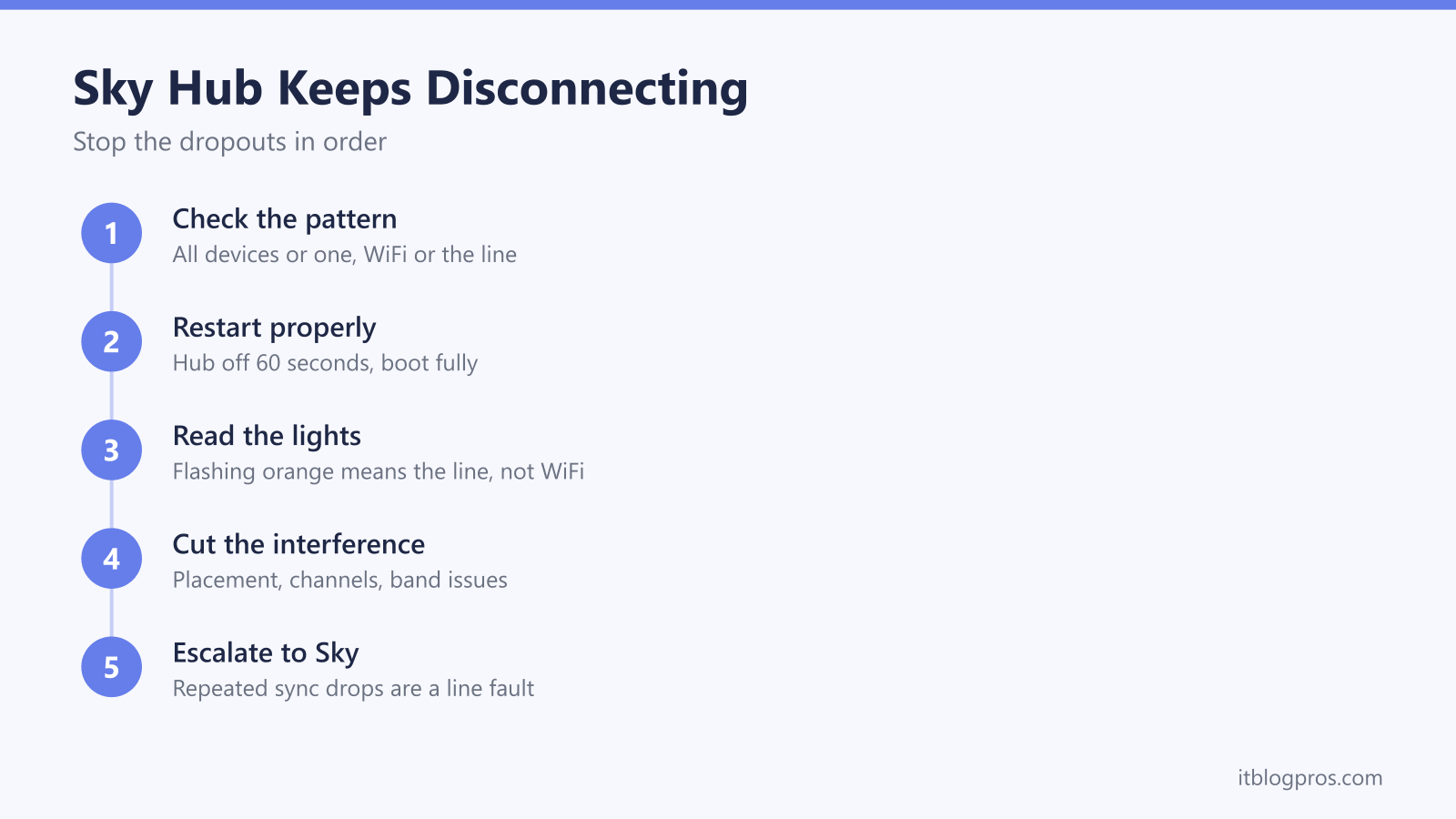
A Sky Hub that keeps disconnecting is one of three different faults wearing the same symptom: a single awkward device, a wireless problem inside the house, or a broadband line that keeps losing sync. Each branch has a different fix, and telling them apart takes about two minutes of watching what actually happens during a drop. This guide runs that split first, then works each branch in order, from the free fixes through to the point where Sky needs to send an engineer.
A Sky Hub that keeps disconnecting needs one diagnostic split before anything else: every device dropping at once points at the hub or the line, one device dropping points at that device, and WiFi that stays visible while the hub's light changes points at the line. Restart the hub off at the plug for 60 seconds, read the lights during a drop, and report repeated sync losses to Sky as a line fault.
Key Takeaways
- The drop pattern identifies the fault: every device at once means the hub or the line, one device means that device, and WiFi staying visible while the hub's light changes means the line.
- Switching the hub off at the plug for a full 60 seconds clears more intermittent drops than any other single step, because it wipes the stalled device address table and forces a fresh WiFi channel scan on boot.
- The hub's lights at the moment of a drop separate wireless trouble from line trouble; a light that stays settled means the wireless side, while amber or flashing patterns generally mean lost sync.
- WiFi-only drops usually trace to congested channels, a badly placed hub or band steering confusing older devices, and all three cost nothing to fix.
- Broadband that loses sync repeatedly is a line fault for Sky to fix, and a simple log of when the drops happen makes the report far more effective than a vague complaint.
Work Out What Is Actually Dropping First
Before touching a single setting, watch one drop happen and note three things: how many devices lost their connection, whether anything wired went down too, and what the hub's light was doing at that moment. Those three observations sort the fault into its branch faster than any amount of rebooting.
One phone or laptop dropping while everything else stays online points at that device, not the hub. Forget the network on the device and rejoin it, toggle its WiFi off and on, and restart it. Every device failing at the same time, especially anything on an Ethernet cable, points at the hub or the broadband line. And the sneakiest pattern of the three is WiFi that stays visible with full bars while nothing loads and the hub's light shifts colour; that is the line losing sync while the wireless carries on broadcasting locally, and no WiFi tweak will ever fix it.
Start a note on your phone and log the time of each drop as you go. The pattern matters later, and this page covers the Sky-specific causes; the general WiFi keeps dropping guide walks the same ladder for any router if you want the provider-neutral version.
The 60 Second Restart, Done Properly
Switch the hub off at the plug, wait a full 60 seconds, then power it back on and give it three or four minutes to boot and resync. Done properly, this single step clears more intermittent drops than everything else combined, for two concrete reasons.
The first is DHCP, the system the hub uses to hand every device a local address. Over weeks of uptime that address table can get into a tangle, particularly in a busy house where phones, TVs and smart devices join and leave constantly, and a tangled table produces drops and the classic connected-but-no-internet state. The restart wipes it clean, and every device negotiates a fresh address as it rejoins. The second is the WiFi channel. The hub picks its operating channel when it boots and then mostly sits on it, so in a crowded street it can spend weeks fighting the neighbours for the same slice of airspace. A restart forces a fresh scan, and the hub usually lands somewhere quieter.
Two cautions keep the restart honest. Use the plug or power switch, never a long press on the recessed reset control, because holding that wipes the hub back to factory settings and takes your WiFi name and password with it. And on Sky's part-fibre connections, resist the urge to restart over and over: the equipment managing the line watches for instability, and a line that disconnects repeatedly, including through constant manual reboots, can be automatically slowed down to steady it. Restart deliberately, not as a habit.
Read the Hub Lights During a Drop
The light on the front tells you which half of the system failed, but only if you catch it at the right moment. A hub that has already recovered shows a healthy light and tells you nothing, so the trick is to look at it while the drop is happening.
Sky has shipped several hub generations, and the exact colours and patterns differ between them, so treat the semantics generically. A settled, steady light once boot has finished, white or green depending on the model, means the hub believes it is online; if devices are still dropping against that steady light, the fault is on the wireless side. An amber or orange state, or a light that starts flashing well after boot has completed, generally means the hub is trying to find or hold its connection to the line, which puts the fault on the broadband side. A red light points at a connection failure or a hub fault. And no light at all is a power problem rather than a broadband one: check the power connector is seated firmly at the hub end and try a different wall socket before assuming the worst. For the exact meaning of every state on your specific model, the Sky hub lights guide has model-by-model tables.
This is the fork in the road. A steady light during drops sends you to the wireless fixes next; a changing light sends you straight past them to the line fault section, which saves an evening of pointless tinkering.
WiFi-Only Drops Come From Interference, Placement and Band Steering
When the hub's light stays settled while devices fall off the network, the broadband is fine and the wireless is struggling. Three culprits cover nearly every case.
Channel congestion is the first. In flats and terraces, dozens of networks share the same airwaves, and because the hub only rescans at boot it can sit on a crowded channel indefinitely. The restart above often fixes this by accident; the deliberate version is to sign in to the hub's settings and set the channel by hand, and the Sky Hub login guide walks through getting into the settings pages. On 2.4GHz, channels 1, 6 and 11 are the only three that do not overlap, and a free WiFi analyser app on a phone shows which ones the neighbours already occupy.
Interference and placement come second, and they travel together. Microwaves, baby monitors, cordless phone bases and Bluetooth speakers all crowd the 2.4GHz band, so a hub sitting next to any of them behaves far worse than the same hub in open air. Keep the hub upright, off the floor, out of cupboards and away from the back of the TV.
Band steering is the third and least obvious. Recent Sky hubs broadcast both the 2.4GHz and 5GHz bands under a single network name and decide, device by device, which band each should use. Most kit copes invisibly, but some older laptops and smart-home gadgets bounce between the bands, and every bounce looks like a drop: a call freezes, a smart plug falls offline, a device shows connected with nothing loading. Settings vary by hub model and there is no universally supported switch to separate the bands, so the practical workaround for a flapping smart-home device is to pair it close to the hub and keep it within solid 2.4GHz range afterwards.
One boundary is worth drawing clearly. Weak signal in the far rooms that crawls but never quite disconnects is a coverage problem, not a dropping problem, and it has its own fix ladder in the Sky WiFi signal guide. This page stays with connections that actually drop.
Repeated Sync Drops Are a Line Fault, Not a Settings Problem
A hub that loses sync over and over, shown by the light changing while every device drops at once, has a broadband line problem, and no amount of channel changing or hub restarting will cure it. The timing of the drops often names the cause. Drops during rain or wind point at a weathered joint or damaged cable outside. Drops that coincide with an appliance switching on, a fridge compressor, an old thermostat, even next door's kit, point at electrical noise leaking onto the line. Random drops around the clock point at a failing connection somewhere between your master socket and the exchange equipment.
On Sky's part-fibre connections, which run into the house over the phone line, the master socket test is the strongest evidence you can gather. Unscrew the two small screws on the master socket's faceplate and plug the hub's broadband cable into the test socket revealed behind it. That socket bypasses every internal extension in the house, so a hub that holds sync there for a day or two convicts your internal wiring, while a hub that keeps dropping even in the test socket puts the fault on the line outside, which is Sky's side to fix. If any phone equipment shares the line on an older setup, make sure every socket in use has a microfilter, because one unfiltered device can destabilise the whole line. Sky's Full Fibre connections have no master socket to test; the fibre terminates in a small ONT box on the wall, and an ONT whose lights show it losing its optical connection is a fault only an engineer can fix.
Report the Fault and Push for an Engineer
Once the evidence points at the line, report it rather than living with it. Sky can run diagnostics on the connection from their side through the service checker in the My Sky app and on Sky's website, and support agents can test the line during a call or chat. One honest wrinkle: a single snapshot test can easily pass in the gap between drops, which is exactly why the log matters. An intermittent fault is proved by its history, not by one clean test.
Have four things ready when you get in touch: when the drops started, how often they happen and at what times, what the hub's light does at the moment of a drop, and the result of the test socket check. Ask the agent to look at the connection's recent history from their side rather than relying on a single live test. That combination lets them skip the basic script and raise a proper line fault, and repeated sync loss that survives the remote checks normally ends with an engineer visit. Worth knowing before booking: if the engineer traces the fault to wiring inside your home, a charge can apply, which is precisely what the test socket check protects you from, since it establishes in advance whether the fault is inside or outside.
Reboot Loops and Overheating Get Honest Answers
A hub that restarts itself sits in its own category, and the first job is telling routine behaviour from a real fault. An occasional restart, typically overnight, is usually the hub installing a firmware update, and that is normal; if the light shows an updating pattern, leave the hub alone until it finishes, because cutting power mid-update can genuinely harm it.
A hub that reboots every few minutes or hours is a different story, and the causes rank in a sensible order. Heat comes first: a hub sealed in a cupboard, buried under paperwork or squeezed behind a warm TV will cook, and hot electronics restart. Stand it upright in open, ventilated air. Power comes second: reseat the power connector at the hub end, plug the supply directly into a wall socket rather than a crowded extension lead, and try a different socket entirely, since a worn power supply or a loose connection produces exactly this symptom. Hardware comes last, and this is where honesty beats optimism: a hub that still reboot-loops in cool open air, on a known-good socket, with its power lead firmly seated, is failing, and no setting anywhere in its menus fixes failing hardware. Report it to Sky, describe the loop and the checks already done, and ask for a replacement hub rather than another round of scripted restarts.