Most smart home guides open with a shopping list. This one opens with the router, because the pattern across years of fixing Echos, smart plugs and Nest speakers that fall offline is unmistakable: the network decides whether automations feel dependable or infuriating. Sort the WiFi side out first and almost any assistant works well on top of it.
A reliable smart home assistant setup starts with the network rather than the gadgets. TP-Link's and Blink's help pages say Tapo plugs and Blink cameras need 2.4GHz WiFi, so check each device's bands and keep the router central, its 2.4GHz band on and its network sensibly named. Then set up the assistant speaker or hub first, add devices one room at a time, and group them into rooms in the app.
Key Takeaways
- Some smart devices only connect on 2.4GHz, and TP-Link's and Blink's help pages say so of Tapo plugs and Blink cameras, so check each device's supported bands before blaming the assistant.
- Alexa, Google Home and Apple Home all run a UK smart home competently; the sensible choice follows the phones and services already in the house.
- The setup order that avoids pain is WiFi first, assistant speaker second, then devices added one room at a time and grouped in the app.
- Makers differ on one network name for both bands: Blink's WiFi guide says its cameras work on merged networks, while Meross's HomeKit setup FAQ says to turn off 5GHz temporarily if pairing fails.
- An ageing assistant speaker in a far corner often has a weak radio, and replacing it beats endless router tweaking.
Get the Network Right Before Buying Anything
The most useful fact in smart home setup is which WiFi bands each device supports, and the maker's own help pages are the place to check it. TP-Link's Tapo smart plug setup FAQ says the Tapo device does not support 5GHz, Blink's WiFi guide says Blink products can only connect to 2.4GHz networks, and Ring's setup help says some Ring devices only support 2.4GHz networks, while Ring's spec pages list 5GHz as well for models such as the Video Doorbell 4. Blink's guide also says a 2.4GHz band transmits farther and penetrates building materials better, while 5GHz can send more data, and TP-Link's FAQ on the two bands says 2.4GHz is far more crowded than 5GHz.
Two checks come before any kit goes in the basket. First, confirm the router actually broadcasts on 2.4GHz, because some hubs let each band be switched off, as Sky's advanced settings help shows for the Sky Max Hub in the My Sky app. Second, walk the house with a phone and note where the signal drops to a bar or two, since a smart device parked in one of those spots will disconnect no matter which brand made it.
Placement fixes more coverage problems than new hardware does. A router belongs out in the open, roughly central, off the floor, and away from the TV cabinet, the fish tank and the microwave. Every metre it moves out of the hallway cupboard is range the smart home gets back for free.
Alexa, Google Home and Apple Home as Network Citizens
The ecosystem question gets treated as a religious war, and the honest answer is duller: all three run a UK smart home competently, and the sensible pick follows the phones and services already in the house rather than any ranking.
Amazon Alexa supports the broadest spread of affordable smart kit, and Echo speakers are the cheapest route into voice control. Some Echo models also carry a built-in Zigbee or Thread radio, which lets compatible bulbs and sensors connect through the speaker instead of piling onto the WiFi. Google Home centres on Nest speakers and displays, handles conversational requests well, and suits Android households already living in Google's calendar and maps. Apple Home is the smallest ecosystem but processes automations locally, and it needs a HomePod or an Apple TV plugged in and powered as the home hub before automations and remote access work.
Whichever badge wins, the network arithmetic stays identical. Every assistant hub is a mains-powered device that must sit on solid WiFi, or wired Ethernet where the hardware allows it, every hour of the day. The Matter standard is gradually letting devices work across all three ecosystems, and that is genuine progress, but Matter runs over the same WiFi and Thread networks underneath, so it inherits every weakness the network already has.
The Honest Budget Pick for an Assistant Speaker
No nine-product gadget parade is needed here, because one speaker covers the sensible default. The Echo Dot 5th generation (2022) carries a current dual-band 802.11ac radio. In an eero mesh household it also moonlights as an extender through eero Built-in, adding up to 90 square metres of coverage. As the cheapest competent way to put a modern radio and a voice assistant in a room, it earns its place.

The Google and Apple equivalents, the Nest Mini and the HomePod mini, do the same job perfectly well inside their own ecosystems. Buy whichever matches the assistant already running the house, not whichever a comparison table pushed hardest.
The Setup Order That Avoids Pain
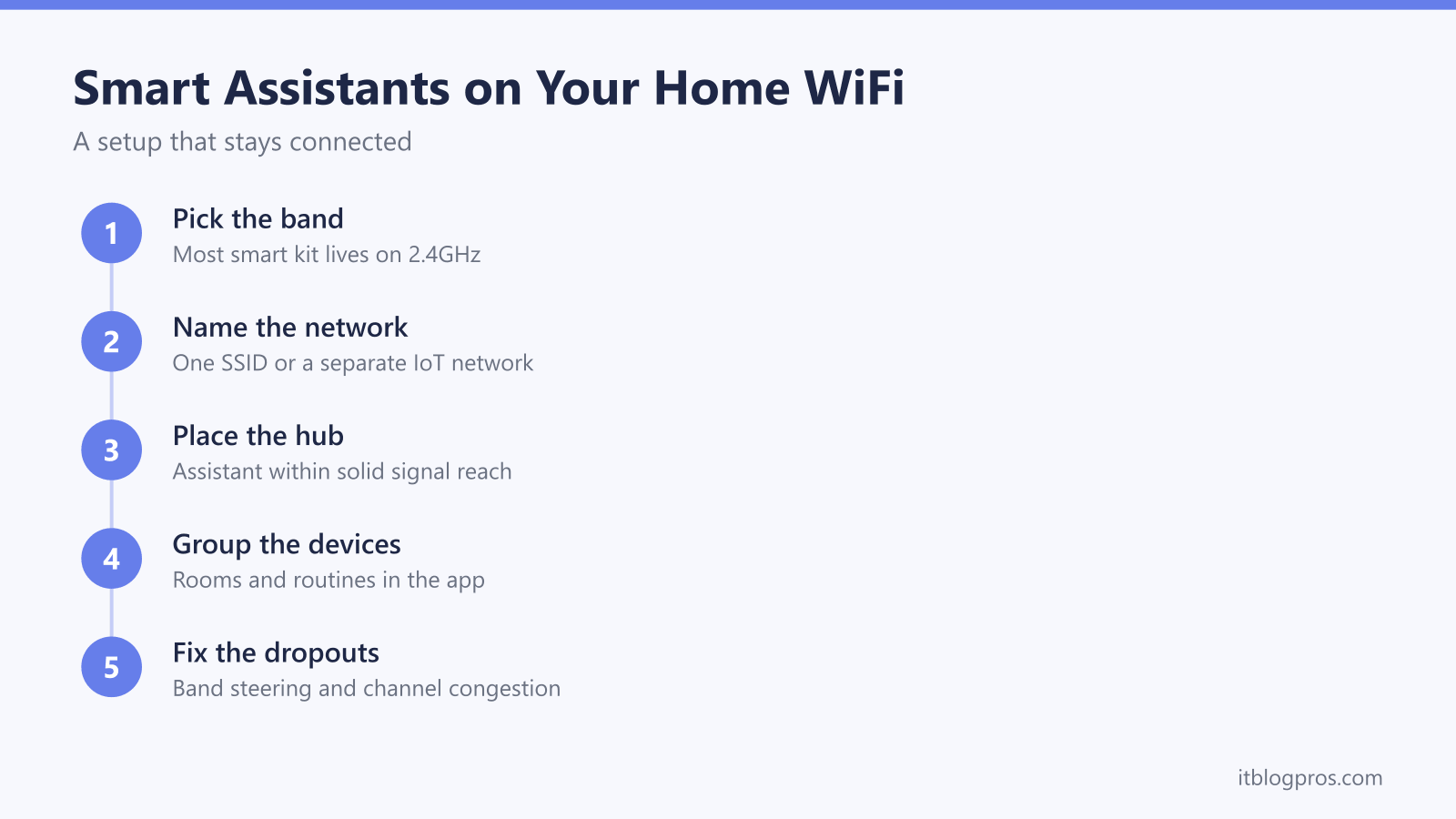
Smart home misery usually traces back to setup order rather than faulty kit. The sequence that avoids the pain runs network, names, assistant, devices, rooms.
Get the WiFi genuinely solid first, using the walk-round test above, and fix any dead zone before a single device ships. Next, settle the network names. Keep the SSID short and recognisable, and never plan to rename it later, because every smart device on the network has to be manually rejoined after a rename. Where the hub allows the bands to be split, a clear pair such as HomeNet and HomeNet-5G removes all guesswork about which network a device actually joined.
A separate network for smart kit is worth considering at this stage. Keeping plugs, bulbs and cameras on their own SSID tidies the main network and limits the damage a compromised cheap gadget can do. One honest caveat applies: the guest network on many ISP hubs isolates clients from each other, which can leave the app on the phone unable to see the devices it is supposed to control. Routers aimed at heavily automated homes handle this properly with a dedicated IoT network, and the smart home router guide covers which UK models do it well.
Then, and only then, add hardware. Set up the assistant speaker first and confirm it answers reliably. Add devices one room at a time, naming each one the way it will be spoken aloud, so Kitchen Lamp rather than the model number the app suggests. Finish each room by grouping its devices in the app, because room groups are what make a command like lights off in the kitchen work without listing every bulb.
The Dropout Fixes That Actually Work
Three network checks are worth running on smart home devices that keep disconnecting, before blaming the kit itself.
Band names come first. Blink's WiFi guide says routers with band steering use the same network name for both 2.4GHz and 5GHz, and makers differ on whether that matters. The same guide says Blink supports merged networks with a single SSID and that Blink devices only connect to 2.4GHz, even when the bands are merged, while Meross's HomeKit setup FAQ says to put the iPhone or iPad on a 2.4GHz network and to turn off the router's 5GHz WiFi temporarily if pairing fails. If a 2.4GHz-only device's setup keeps failing on a combined name, giving the 2.4GHz network its own name lets you choose it deliberately. The Virgin Media hub band-splitting walkthrough shows the method on a Virgin hub, but the setting and its name vary by hub, and BT's own help pages disagree on whether the Smart Hub 2 can split its bands, so check your provider's help page for your exact hub. EE's Compatible WiFi help page, for example, offers a separate 2.4GHz network for smart home devices that only work on 2.4GHz.
Channel congestion comes second. TP-Link's FAQ on the differences between 2.4GHz and 5GHz says 2.4GHz has fewer channel options, with only three of them non-overlapping, and is far more crowded than 5GHz, and TP-Link's Tapo setup FAQ tells you to set the router's channel to 1, 6 or 11. Where a hub admin page allows a manual channel change, trying one of those three is worth a go on a network that turns flaky in the evenings. The same TP-Link FAQ names microwaves and cordless phones as 2.4GHz noise sources, which explains devices that drop precisely at dinner time.
Distance and walls finish the list. Brick, foil-backed plasterboard and large appliances all eat 2.4GHz signal, so a plug behind a fridge or a camera on the far side of two solid walls fights physics as much as firmware. Moving the router helps first; a mesh system is the durable fix for a genuinely large or awkward home.
When a single device refuses to join while everything else behaves, the device-specific ladders save time: the smart plug connection guide covers the pairing quirks that plague cheap plugs.
Routines That Depend on the Network Staying Up
Routines are where a smart home starts earning its keep, and three cover most of real life: a morning routine that raises the lights and reads the weather, a leaving routine that switches the plugs off, and a night routine that shuts the house down. Build those, live with them for a week, then expand.
The network dependency deserves honesty. Most Alexa and Google routines make a round trip through the cloud, so a broadband blip can stop voice control mid-sentence and leave a routine firing late or not at all. Apple Home runs automations locally on its home hub, and devices connected over Zigbee or Thread through a local hub keep responding when the internet drops. Some smart plugs also store schedules on the device itself, so a simple lamp timer survives an outage.
The practical rule is to keep anything important simple and as local as possible. Lights and radio can live in the cloud without much consequence; heating and door locks should never depend on a network that wobbles.
The Old Speaker in the Dead Corner Is Often the Real Culprit
When one corner of the house never behaves, suspicion lands on the router, but an ageing assistant speaker is just as likely at fault. Echo and Nest devices from the 2014 to 2017 era carry 802.11n-generation radios and predate WPA3, so check them first when a device falls off the network for good after a broadband or hub upgrade.
Two tests settle it. Factory reset the speaker and set it up fresh on the home network, then point it at a phone hotspot instead. A speaker that fails on both after a reset has a failing radio, and no router setting revives failing hardware. The Echo reconnection guide walks through both tests, plus every ring colour on the way.
Where the tests clear the speaker, weak coverage in that spot is the real problem, and the lasting answer is a router or mesh decision rather than another factory reset.
The First Weekend, in Order
A realistic plan for getting all of this done:
- Walk the house with a phone and map the weak WiFi spots.
- Move the router somewhere central and open, then confirm its 2.4GHz band is on, and split the bands if a 2.4GHz-only device's setup keeps failing on a combined name.
- Settle the network names, and set up a separate IoT network if the router supports one properly.
- Set up the assistant speaker and confirm it answers reliably.
- Add devices one room at a time, naming each for voice, and group them into rooms in the app.
- Build the morning, leaving and night routines, then stop for a week before adding more.
A smart home built in that order rarely needs troubleshooting at all, which is the quietest possible endorsement of doing the boring network work first.